On this page
The class routine is the weekly timetable of each section. It is built on a day template of periods and bell times, so you set the times once and every class uses them.
Steps
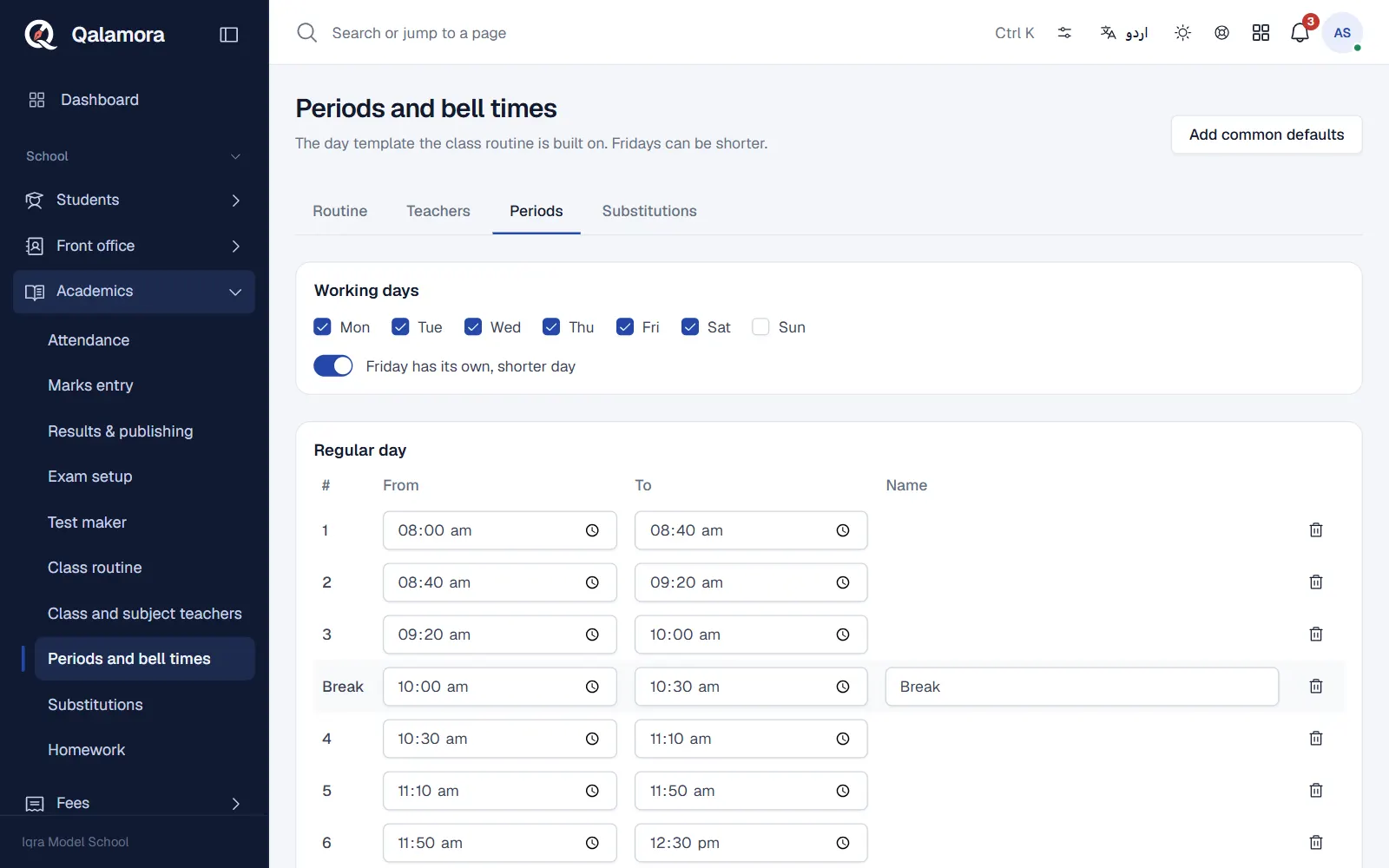
- Open Academics > Periods. The page is Periods and bell times. Click Add common defaults for a starting day, or add each row with Add lesson and Add break (From, To and a Name).
- Set working days. Tick the Working days. Switch on Friday has its own, shorter day and set the Friday periods if your school closes early on Fridays. Each campus can have its own times; a campus without its own uses the whole-school times.
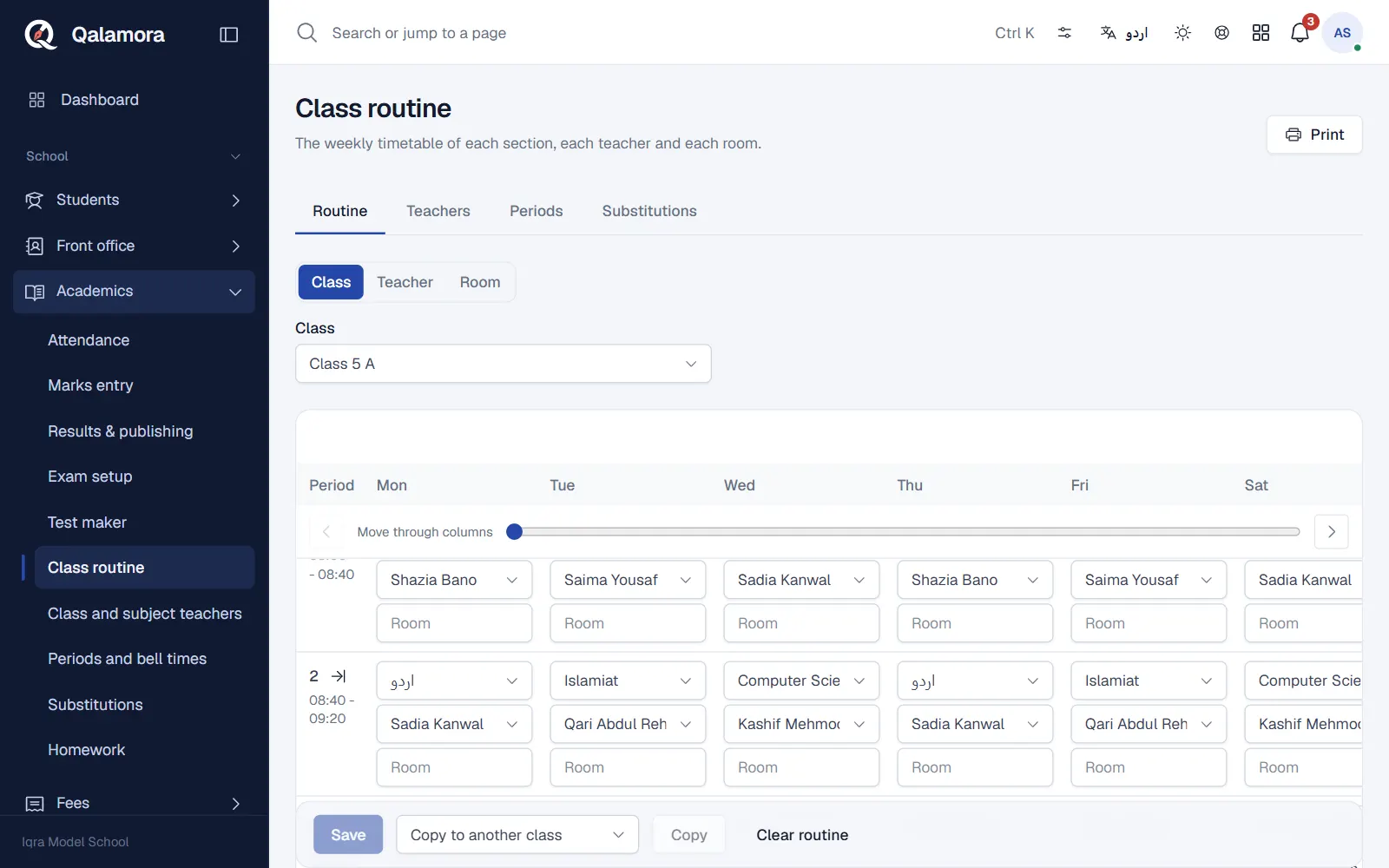
- Open Academics > Routine and choose a class. The grid shows days across and periods down.
- Fill the cells. For each period pick the Subject, Teacher and Room. Ctrl and the arrow keys move between cells. Use Copy the first day of period to fill a whole row.
- Click Save. A teacher or room already used by another section at the same time is refused, so double bookings cannot happen.
- Print the routine for the classroom wall.
Other views
At the top of the routine switch between Class, Teacher and Room to see one teacher's week or when a room is in use.
Copy to another class
Click Copy to another class to start a similar section quickly. Subjects are copied; rooms are not. Teachers are filled in only where one teacher is set for the subject and is free. The other class's routine is replaced.
Important
Clear routine removes every cell of the class's weekly routine. Use it only to start again.
Related
Was this page helpful?
Good to hear. Your answer is not sent or saved.
Sorry about that. Tell us what was missing and we will improve this guide. Tell us