When the marks are in, the principal compiles the results of each class exam, checks them and publishes them. Publishing freezes the results and lets students and parents see them in their app. Compiling and publishing need the publish results permission (principal by default).
Before you start
- Mark registers of the exam should be submitted. Check the counts in Academics > Marks entry.
- Check the pass percentage and grading in Academics > Exam setup.
Steps
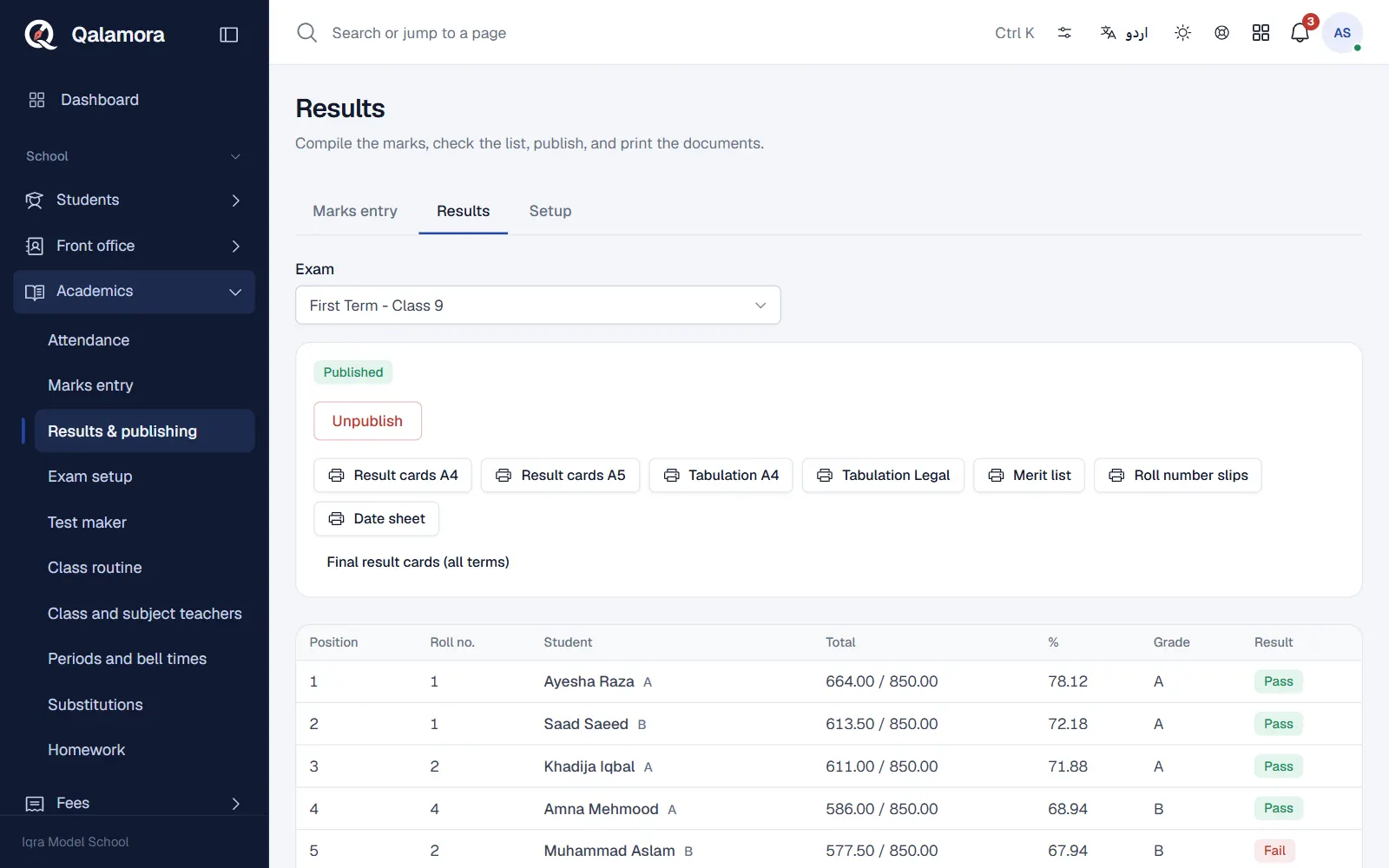
- Open Results. Go to Academics > Results & publishing and choose the Exam (one class's exam of a term).
- Compile. Press Compile results. Progress is shown as Compiling... 40%. When it finishes, the list shows every student with position, roll number, total, percentage, grade and Pass or Fail.
- Check the list. Look for missing or unexpected marks. If marks change after compiling, the exam shows Marks changed, compile again. Press Compile results again.
- Publish. Press Publish results. Tick Send an SMS to parents if you want one SMS per student. If some marks are still missing and you want to go ahead anyway, tick Publish even if some marks are missing. Press Publish results to confirm.
How results are worked out
- Percentage = total obtained / total maximum x 100, rounded to 2 decimals.
- Grade comes from the default grading scale.
- A subject is passed when the marks reach its passing marks. Absent counts as 0 and failed.
- The exam is passed when the percentage reaches the pass percentage and, if the rule Failing any subject fails the exam is on, no subject is failed.
- Positions are by total marks, in the class and in the section. Students with the same total share a position and the next position follows on (1, 2, 2, 3). Every student is ranked.
What happens when you publish
- The results are frozen. Marks cannot change while they are published.
- Students and parents with a login get a Results published notice in their app, unless you turned off Tell students and parents when results are published in Exam setup > Rules. The notice names the exam and class only, not the marks.
- With Send an SMS to parents, each parent gets the result SMS text from Rules, filled with the student's name, exam, percentage, grade, position and school name. The SMS choice appears only when your school can send SMS.
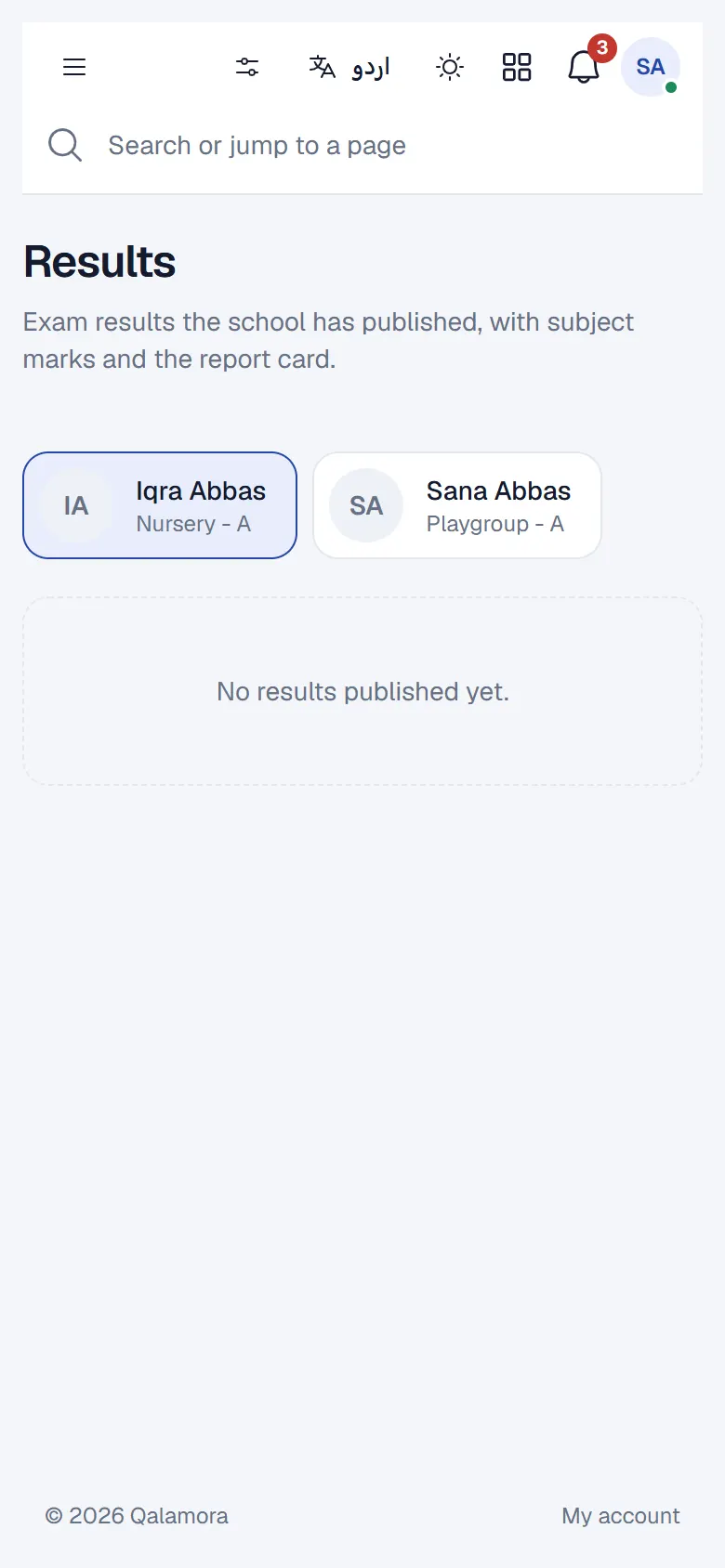
- Families see the subject marks, percentage and grade in Results in their app, and can download the report card. Class positions are shown to them only if Show positions to parents and students is on.
Important
To change a published result, press Unpublish and give a Reason. The reason is written to the audit log. Then fix the marks, compile and publish again. Publishing again sends the notice again.
Related
Was this page helpful?
Good to hear. Your answer is not sent or saved.
Sorry about that. Tell us what was missing and we will improve this guide. Tell us