On this page
Marks are entered one register at a time: one exam, one section, one subject. Teachers enter marks for their own subjects; the principal can enter, check and reopen any register.
Before you start
- The exam and its subjects with Max marks must be set up in Academics > Exam setup.
- Your login needs the permission to enter marks. The Teacher role has it by default.
Steps
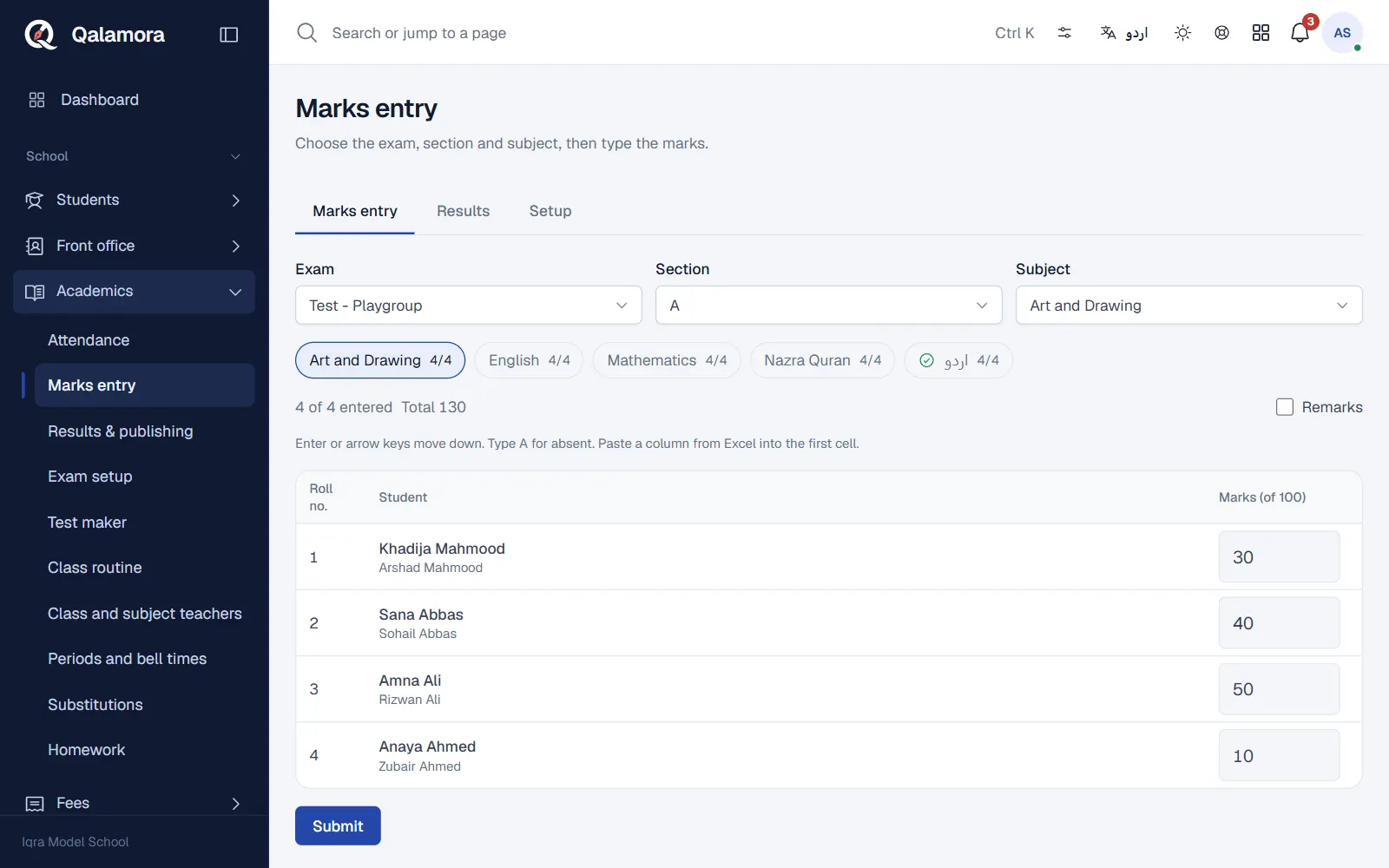
- Open Marks entry. Go to Academics > Marks entry. Teachers also see a Marks to enter card on their home page listing their unfinished registers.
- Choose the register. Pick the Exam, the Section and the Subject. The row of buttons under the choices shows every subject of that section with how many marks are entered, for example 12/40. A tick means the register is submitted.
- Type the marks. Type each student's marks and press Enter or the arrow keys to move down. Type A for a student who was absent.
- Watch the checks. A mark above the maximum or a value that is not a number is shown in red, for example More than the maximum of 50. The line above the grid shows how many are entered and the total typed.
- Submit. When every mark is in, press Submit and confirm. A submitted register is locked.
Tip
If the marks are already in Excel, copy the marks column and paste it into the first cell. The whole column fills in one go.
Saving and drafts
Marks are saved automatically as a draft while you type. The status next to the grid shows Saving..., Draft saved or Unsaved changes. You can leave and come back later; the register stays a draft until you press Submit.
Remarks
Tick Remarks above the grid to show a remarks box for each student.
Correcting a submitted register
A submitted register shows This register is submitted. Ask the principal to reopen it. Someone with permission to edit submitted marks (the principal by default) can press Reopen for editing. Every change after submitting is written to the audit log. If results were already compiled, they are marked Marks changed, compile again.
If you cannot type in a register
Your school may have turned on Teachers may enter marks only for subjects they teach in Exam setup > Rules. Then you can only enter marks for the subjects and sections set for you in Academics > Class and subject teachers.
How absent and missing marks count
- A (absent) counts as 0 marks and the subject is failed.
- A blank mark also counts as 0 when results are compiled, and it is flagged.
Related
Was this page helpful?
Good to hear. Your answer is not sent or saved.
Sorry about that. Tell us what was missing and we will improve this guide. Tell us