If your students are already in Excel or a register, do not type them again. The import reads your sheet, shows every row with its problems, and adds nothing until you confirm.
Steps
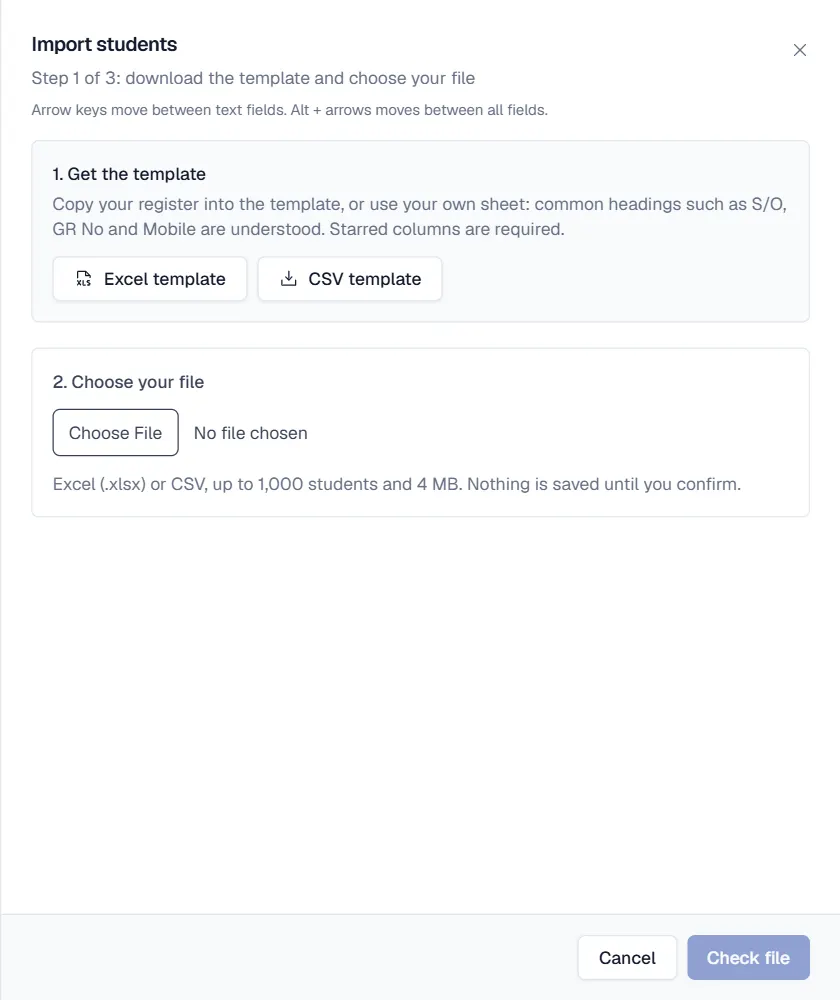
- Open Students and click Import students. The import opens on Step 1 of 3.
- Get the template or use your own sheet. Download the Excel template or CSV template and copy your register into it. Your own sheet also works: common headings such as S/O, GR No and Mobile are understood.
- Choose your file. Pick an Excel (.xlsx) or CSV file with up to 1,000 students and 4 MB, then click Check file.
- Review the rows. Step 2 shows how many students are ready. Use Show rows to see Needs attention, Ready or Skipped. The Students per class box shows counts per class.
- Fix or skip problems. Click Fix on a row to correct it and Save row, or click Skip. For a Possible duplicate, choose This is a different child if it really is another student.
- Add the students. Click Add students. Step 3 shows how many were added and lists any row that could not be added, with the reason.
Columns you can import
GR or admission number, name, father name, gender, date of birth, B-Form number, class, section, roll number, admission date, student phone, address, city, religion, blood group, guardian name, relation, phone, CNIC and occupation, previous school and medical notes. Columns that are not recognised are listed and ignored.
Tips for a clean import
- Class and section names in the sheet must match the classes in Qalamora. Create the classes first.
- Leave GR numbers empty to number students automatically, or keep your old numbers.
- Guardians with the same CNIC or phone are linked as one family, so siblings are found.
Note
Nothing is saved while you review. If the file was wrong, click Start over.
Related
Was this page helpful?
Good to hear. Your answer is not sent or saved.
Sorry about that. Tell us what was missing and we will improve this guide. Tell us