Parents and students sign in to their own simple screen. Every parent gets one login for all their children, and students sign in with their GR number. Logins are created from the student list, for one class or a few selected students at a time.
Steps
- Open Students. Filter the list to a class, or tick the students you want.
- Click Logins. The Parent and student logins sheet opens.
- Choose who gets a login. Under Create logins for tick Parents, Students or both.
- Choose which students. The selected students or Everyone in the class shown. Tick Every guardian, not only the main contact if both parents should get a login.
- Click Create logins. Qalamora shows Logins ready: how many new logins were made, how many parents were linked to more children, and who already had a login.
- Hand out the passwords. Login slips open for printing (they are deleted from the server after 30 minutes). If an SMS provider is connected, passwords are also sent by SMS.
Why some are skipped
The result lists skipped people with the reason: No mobile number, Mobile number used by a staff login, No GR number or GR number already used by another login. Fix the record on the student's profile and create logins again. Nobody gets a second login.
What families see
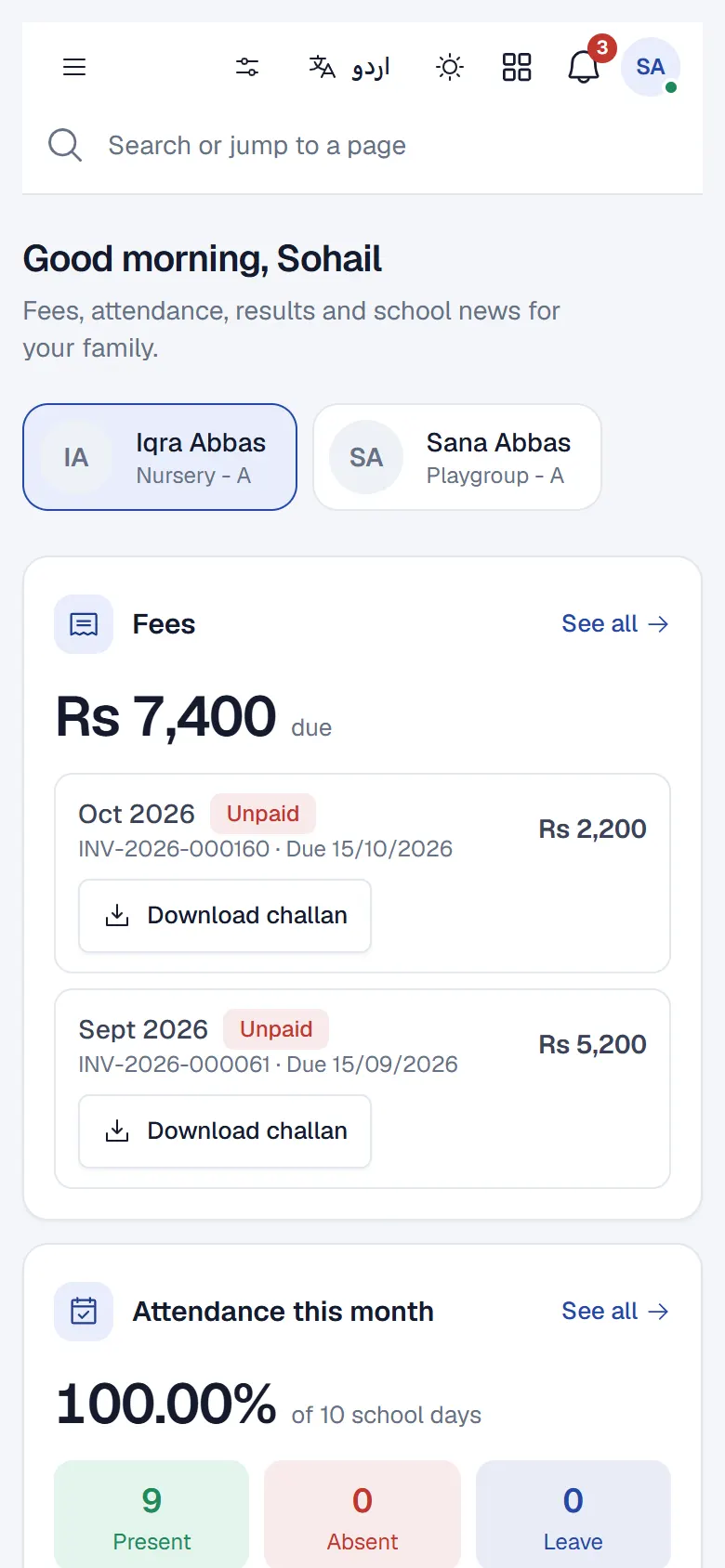
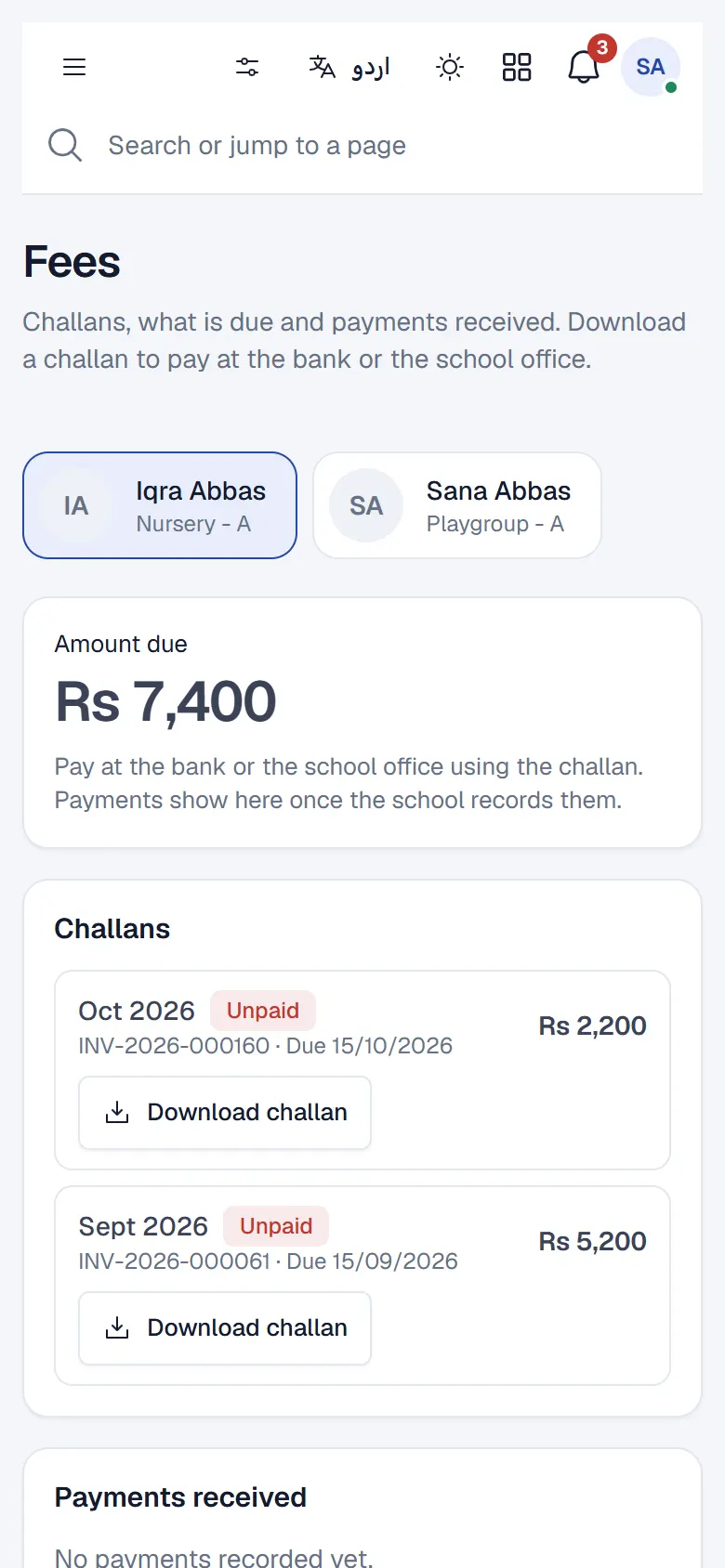
After signing in, a parent sees a home page for each child (with Choose a child if there is more than one): fee dues and challans to download, attendance, results, homework and school notices, as your school has switched them on. Parents see only their own children, never another student's data.
Tip
Notices, absence alerts and fee reminders reach logged-in parents in the app for free. See Save SMS costs with in-app notifications.
Teachers
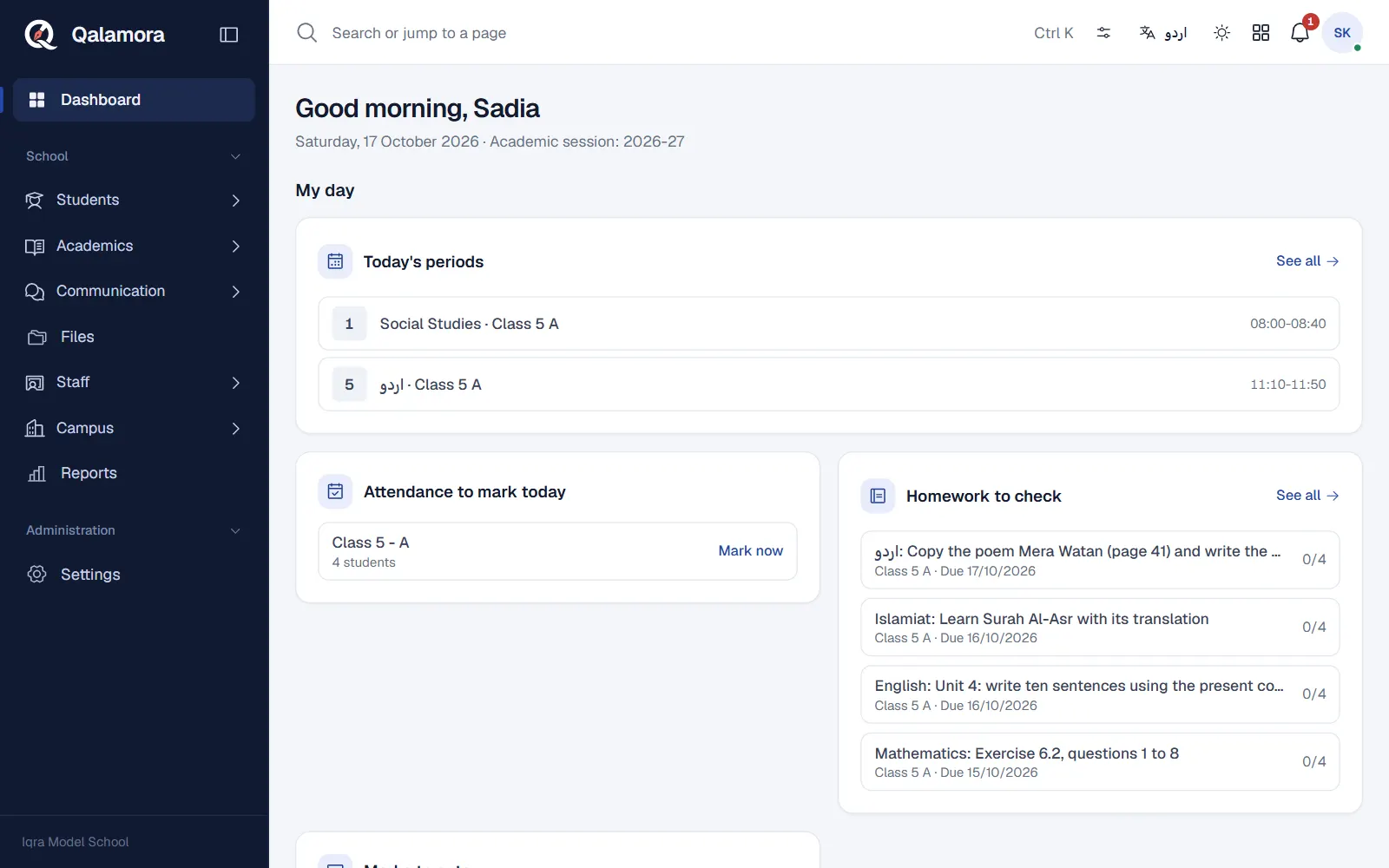
Teachers sign in like other staff. If they have teaching assignments they see My day on top of their dashboard: today's classes, attendance to mark and homework to check.
Related
Was this page helpful?
Good to hear. Your answer is not sent or saved.
Sorry about that. Tell us what was missing and we will improve this guide. Tell us