On this page
The question bank is shared by all teachers of your school. Papers are made only from approved questions, so the bank is worth filling once and reusing every term. Teachers can add questions; the principal approves them.
Before you start
- Classes and subjects exist in Settings > Academic setup.
- Your login needs the permission to manage questions. The Teacher role has it by default.
Steps
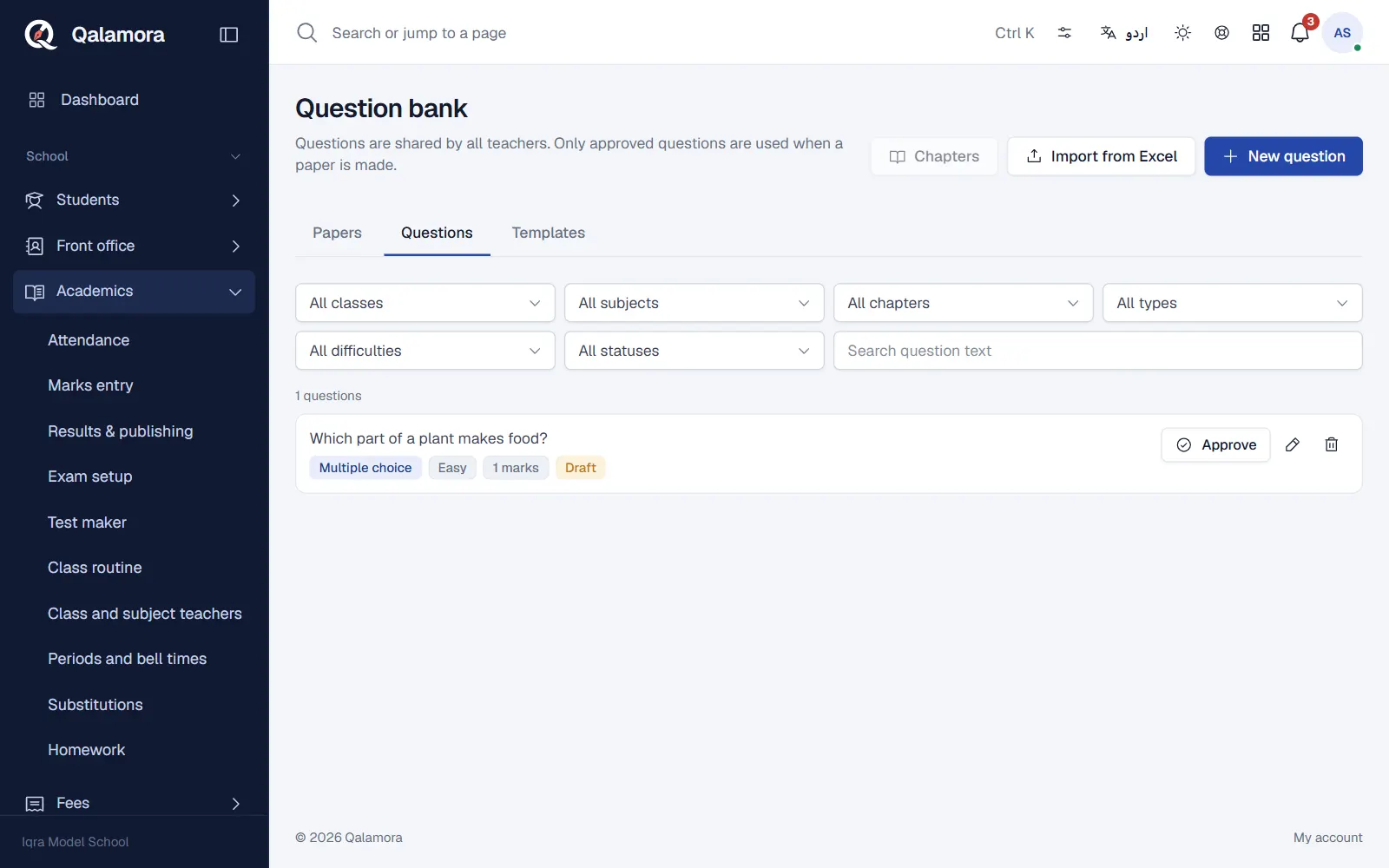
- Open the question bank. Go to Academics > Test maker and open the Questions tab.
- Add chapters (optional). Choose a class and a subject in the filters, then press Chapters. Add the chapter names and, if you like, topics under each chapter. Chapters let you make a paper from chosen chapters only.
- Add a question. Press New question. Choose the Class, Subject, Chapter, Type, Difficulty, Marks and Language.
- Type the question. Write the Question. For Multiple choice, type the options and tick the correct one. For short and long questions, type the Answer for the answer key. The toolbar has bold, underline, powers, subscripts, lists and maths symbols.
- Save and approve. Save the question. A principal (or anyone with approve permission) presses Approve on the question list so it can be used in papers.
Question types and languages
| Type | Used for |
|---|---|
| Multiple choice | Four options with one correct answer. |
| True or false | A statement with True or False. |
| Fill in the blank | One-word or short answers. |
| Short question | Short answers, often grouped on board-style papers. |
| Long question | Detailed answers. |
The Language of a question is English, Urdu or Bilingual (English and Urdu). A bilingual question has a second box for the Urdu text and Urdu options.
Draft and approved
- A question saved by a teacher is a Draft until someone with approve permission approves it. The form says Your questions are saved as drafts until the principal approves them.
- If a teacher edits an approved question, it goes back to draft.
- Back to draft removes a question from use without deleting it.
Import from Excel
- Press Import from Excel and Download template.
- Fill one row per question: class, subject, chapter, type, difficulty, marks, stem, option_a to option_d, correct and answer. A chapter name that does not exist yet is created for you.
- Press Choose file. Every row is checked first and problems are shown. Nothing is saved yet. Use Skip to leave out a row.
- Press the Save button (it shows how many questions, for example Save 40 questions) to import the ready rows. Imported questions start as drafts. Up to 500 rows per file.
Note
Maths uses superscript, subscript and the symbols toolbar. Pictures cannot be added to questions yet.
Related
Was this page helpful?
Good to hear. Your answer is not sent or saved.
Sorry about that. Tell us what was missing and we will improve this guide. Tell us