On this page
Every person signs in at your school's own web address. Owners and accountants must use two-factor sign-in: after the password, they also type a 6-digit code from an authenticator app on their phone. Other staff can turn it on themselves, and the owner can require it for more roles.
Before you start
- Install an authenticator app on your phone, such as Google Authenticator or Microsoft Authenticator.
- Know your school web address. If you forget it, open Sign in on the Qalamora website, type the address or your school's name in School address or name and click Find my school.
Steps
- Open your school address. The page shows Sign in with your school's name.
- Enter your login and password. In Email, mobile number or GR no. staff type their email. Parents use their mobile number and students use their GR number. Type the Password and click Sign in. Tick Keep me signed in on this computer only on your own computer.
- Start two-factor setup. If your role needs two-factor, Qalamora opens Protect your account. Type your password under Confirm your password to begin and click Set up two-factor.
- Scan the code with your phone. Open the authenticator app, add a new account and scan the code on the screen. If you cannot scan, type the key shown under it into the app.
- Type the 6-digit code. Enter the code the app shows and click Turn on two-factor.
- Save your recovery codes. Qalamora shows a list of recovery codes once. Write them down or print them and keep them somewhere safe, then click I've saved my codes.
From now on, after your password Qalamora asks Enter your verification code. Open the app, type the current 6-digit code and click Verify and sign in.
Important
Never share your screen, photos of the code or your recovery codes with anyone, including people who say they are from Qalamora. Qalamora staff never ask for them.
If you lose your phone
On the code screen, click Use a recovery code instead and type one of your saved codes. Each recovery code works once. After signing in, open My account and turn two-factor on again with your new phone, or click Get new recovery codes. If you have no recovery codes left, ask the school owner. An owner who is locked out should contact Qalamora support.
After 5 wrong codes in a row, the sign-in is locked for 15 minutes. Wait, then sign in again from the start.
Temporary passwords
When the school creates your login or resets your password, you get a temporary password. At the first sign-in Qalamora asks you to Choose your own password: type the temporary one, then your new password twice, and click Save and continue.
Turning two-factor on yourself
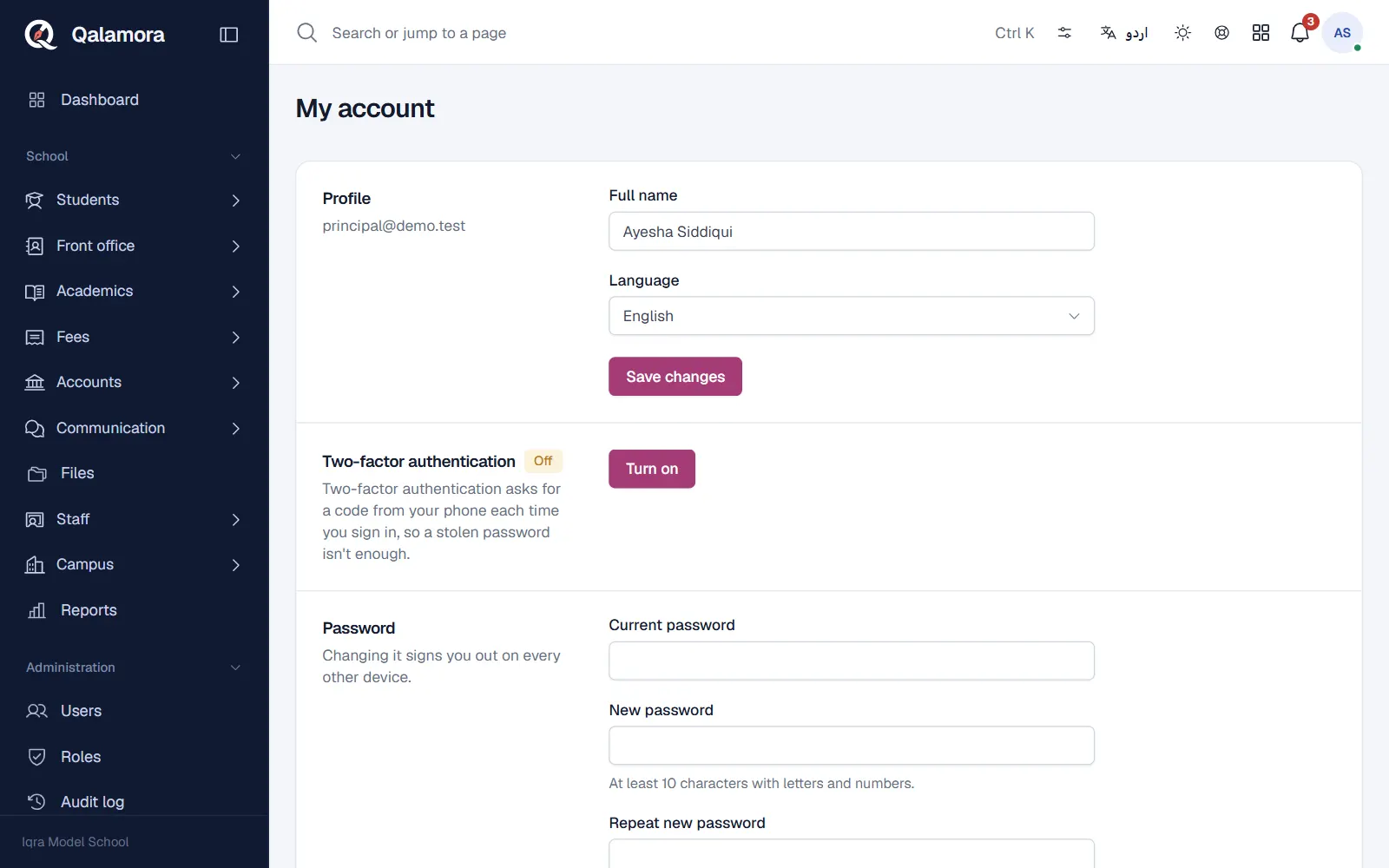
Any staff member can open My account from the user menu and click Turn on under Two-factor authentication. Owners and accountants cannot turn it off.
Related
Was this page helpful?
Good to hear. Your answer is not sent or saved.
Sorry about that. Tell us what was missing and we will improve this guide. Tell us