On this page
Once a challan is issued it is never edited directly. If an amount is wrong, a line is missing or the last date must move, you send a change request. Someone else with approval rights decides, and approved changes are added as credit and debit notes. This keeps a clear record of who changed what and why.
Request a change
- Open Fees > Challans. Find the challan in the Challan register.
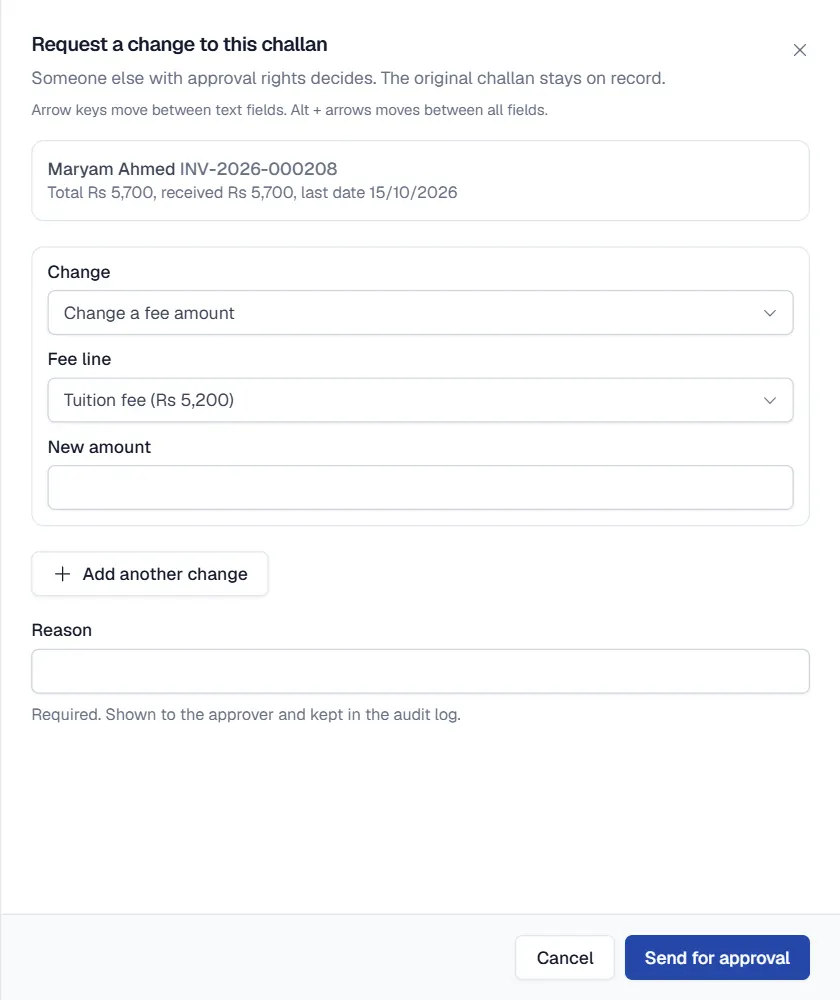
- Click Request change on the challan row. The sheet shows the current total, amount received and last date.
- Describe the change. Under Change choose one of: Change a fee amount, Remove a fee line, Add a fee line, Waive an amount (fine or concession) or Change the last date, and fill in the new value. Use Add another change for more than one.
- Write the reason. The Reason is required. The approver sees it and it is kept in the audit log.
- Click Send for approval. The request gets a number and appears in the Change requests tab as Waiting.
Approve or reject
- Open Fees > Challans > Change requests.
- Open a waiting request. You see each change and the Change to the challan total.
- Click Approve, or Reject and write the reason for rejecting.
Nobody can approve their own request. By default the principal and the owner can approve; the accountant can request.
Note
A school with only one person who can approve can switch on Owner may approve their own challan change when nobody else can in Fees > Fee setup > Rules and printing.
Related
Was this page helpful?
Good to hear. Your answer is not sent or saved.
Sorry about that. Tell us what was missing and we will improve this guide. Tell us