On this page
The Transport module records your vans and buses, the routes with their stops and timings, and which student rides where. The monthly fee of each stop is added to the student's fee challan, so there is no separate transport register to keep. The principal manages transport by default.
Steps
- Add your vehicles. Open Campus > Vehicles and click New vehicle. Enter the Registration number, Type (van, bus or coaster), Seats, Driver and Driver mobile, an optional conductor, and the Fitness certificate until and Route permit until dates.
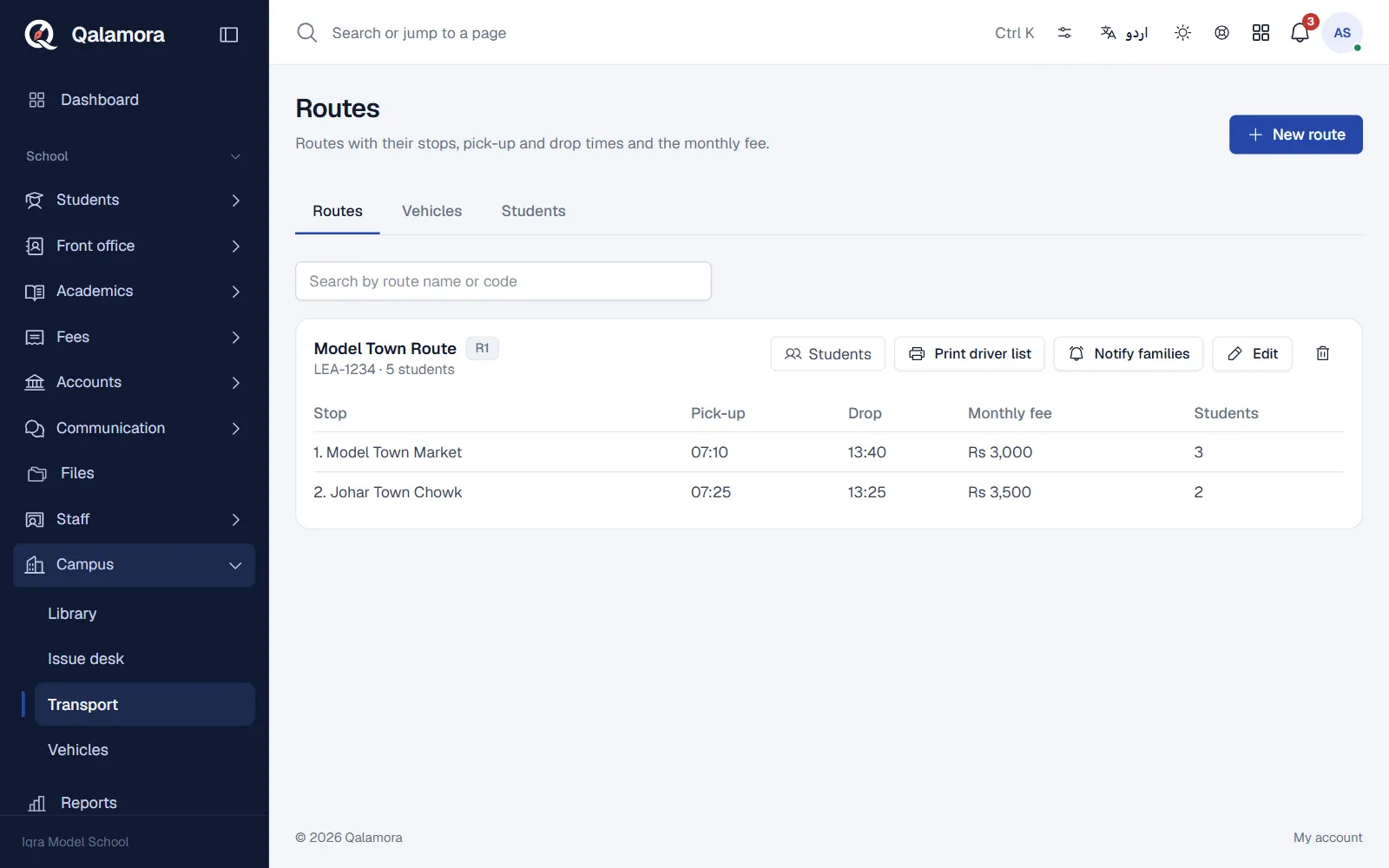
- Add a route. Open Campus > Transport and click New route. Enter the Route name, an optional code and the Default vehicle.
- Add the stops in driving order. Under Stops in driving order click Add stop for each stop, with its Pick-up and Drop time and Monthly fee. Use the arrows to reorder stops. Save the route.
- Put students on the route. Open the Students tab and click Put students on a route. Choose the Route and Stop, search and add the students, then click Assign. If the vehicle does not have enough seats, the whole list is refused so you can choose another vehicle or split the group.
- Bill the fee on challans. The accountant opens Fees > Fee setup > Charges from other modules and chooses the fee head transport is billed under (for example "Transport fee"). From then on, each month's challans include the stop's monthly fee for every student with a seat.
How the transport fee is charged
The principal chooses in Settings > Transport under Charge transport for:
- The full month (default): every student with a seat pays the stop's whole monthly fee.
- Days assigned in the month: the month the seat is given is charged by days, rounded to a rupee. Later months are charged in full.
A student is billed once per month, so preparing challans again never bills twice. A student removed from transport, a stop with fee 0, and students who have left are not billed. Changing a stop later does not change a challan already issued; use a challan change request in Fees for that.
Driver list and notices
- Print driver list on a route prints the students, stops and guardian phone numbers so the driver can call families. Elsewhere on screen, phone numbers are partly hidden.
- Notify families sends a short notice to the parents of every student on the route, in their notification bell (for example "Van will be late today").
Permit and fitness reminders
The dashboard warns when a vehicle's fitness certificate or route permit expires within 30 days, or has expired.
What parents see
Parents see their child's route, stop, pick-up and drop times and the driver's name and phone in their own login.
Note
A route with students, or a vehicle in use, cannot be deleted. Move the students first, or mark the vehicle Not in use.
Related
Was this page helpful?
Good to hear. Your answer is not sent or saved.
Sorry about that. Tell us what was missing and we will improve this guide. Tell us