Admission is the one time a student's details are typed. After that the record follows them into fees, attendance, exams and messages. Admissions are done in Students by the principal or front office staff with student permissions.
Before you start
Your current session, classes and sections must exist. See Set up sessions, classes and subjects.
Steps
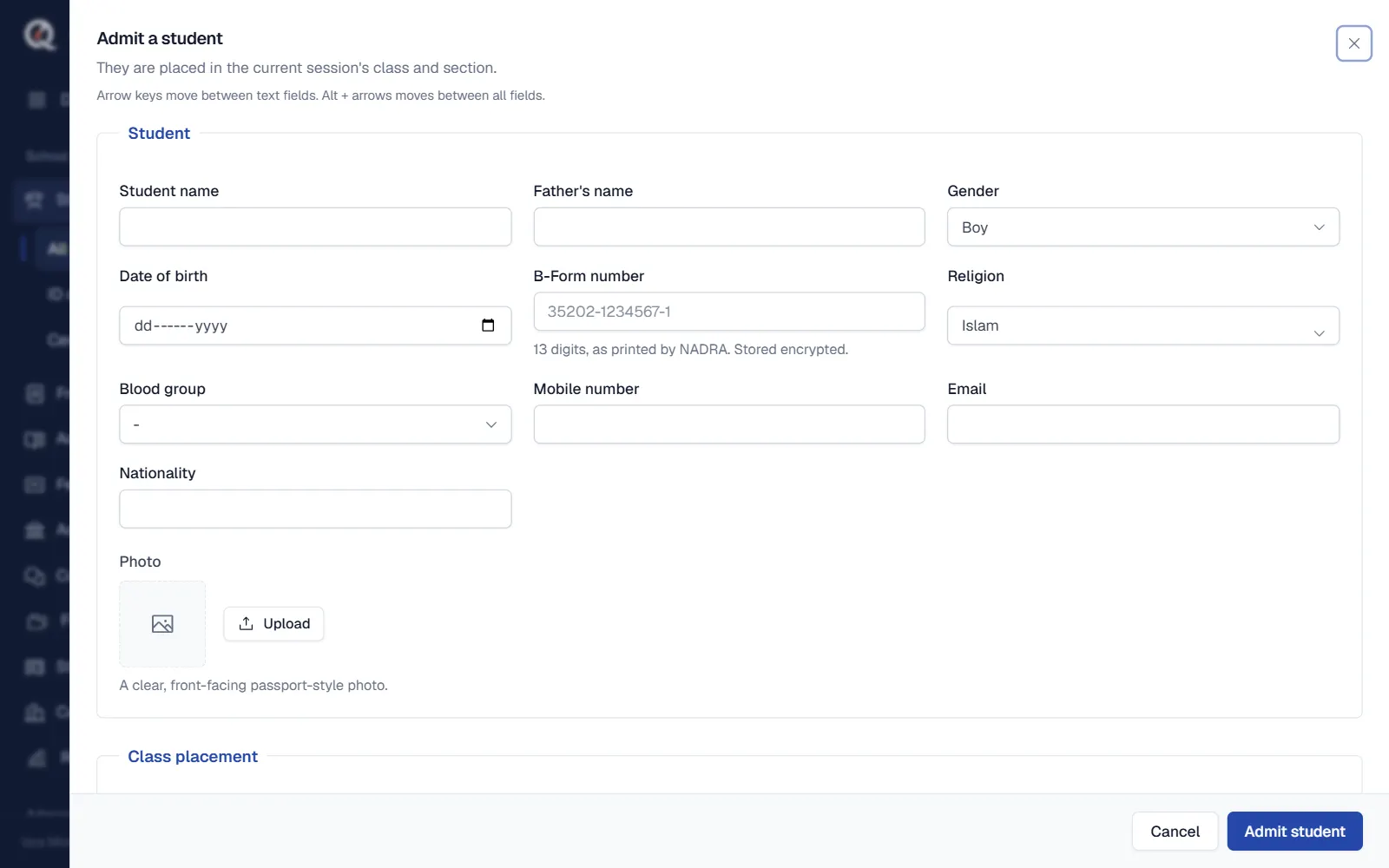
- Open Students and click Admit student. The Admit a student form opens.
- Fill the student section. Enter the Student name, Father's name, Gender, Date of birth and Admission date. The B-Form number is the 13 digits printed by NADRA and is stored encrypted.
- Leave the admission number empty. Admission no. is numbered automatically using your school's numbering rule. Type one only if you must keep an old register number.
- Choose the class placement. Pick the Class and Section in the current session, and the Roll no. if you use one.
- Add parents and guardians. Search parents already in the school by name, phone or CNIC to link a brother or sister, or enter a new guardian with Full name, Relation, phone and CNIC. One guardian is the Main contact for messages.
- Add the address and save. Qalamora shows the new admission number when the student is admitted.
Siblings are linked for you
If a parent with the same CNIC or phone is already in the school, the new child is linked to that parent automatically. That is how sibling discounts and family logins find all children of one family.
After admission
- Put the student on the class fee plan. If the class plan was applied earlier, open Fees > Fee setup and click Apply to class again.
- Print the filled admission form from the student's profile with Print admission form.
- Optional details such as photo, blood group, previous school and medical notes can be added later from the profile. Medical notes are visible only to staff who manage students.
Tip
Many students to add at once? Import them from Excel instead of typing each one.
Related
Was this page helpful?
Good to hear. Your answer is not sent or saved.
Sorry about that. Tell us what was missing and we will improve this guide. Tell us