The Library module keeps your book catalogue, lends books to students and staff at the issue desk, and tracks what is overdue. Members are your existing students and staff, so nobody is typed in twice. The principal has full access by default; a school can give a librarian role the same permissions in Roles.
Before you start
- Set the rules in Campus > Library, Settings tab: Loan days for students (14 by default), Loan days for staff (30), books at a time, Renewals allowed, Grace days before the fine starts and Fine per late day (Rs). A fine of 0 charges nothing.
- Add your books. On the Books tab click Add book, or Import from Excel with columns Title, Author, Publisher, ISBN, Category, Language, Shelf, Price, Copies and Accession No. Every physical copy gets its own accession number, typed by you or numbered automatically.
Steps
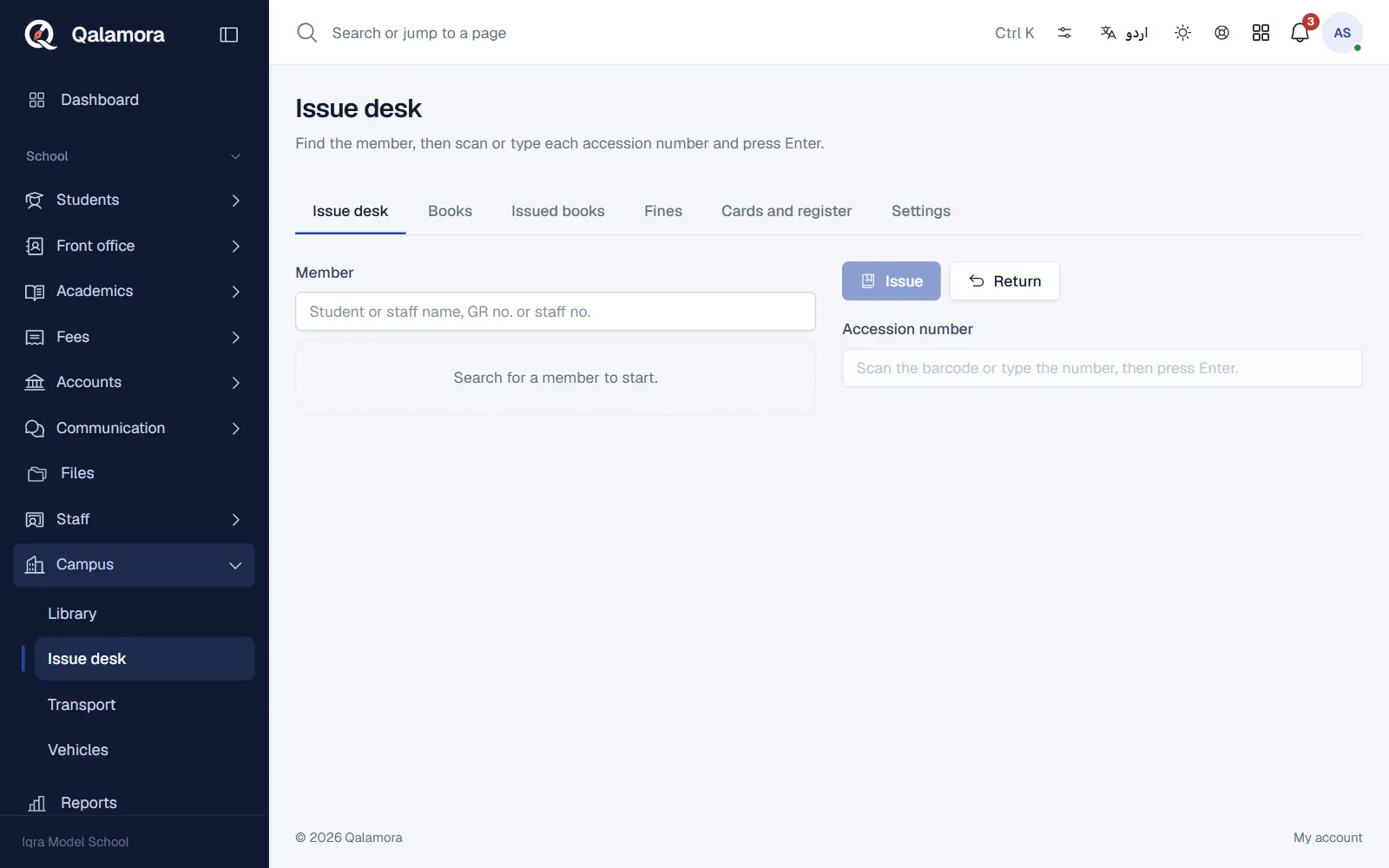
- Open Campus > Issue desk. This is the screen for the library counter.
- Find the member. Type a student or staff name, GR number or staff number and pick the person. Their current books are listed under Books with this member.
- Issue a book. Scan the barcode or type the Accession number and press Enter. The book is issued with the due date from your settings.
- Return a book. Returning does not need a member: scan or type the accession number in the return box and press Enter. If the book is late, Qalamora shows the days late and the fine. Tick Damaged on return if the book came back damaged, with a damage charge if you want one.
- Renew or mark lost. From the member's list, click Renew to extend a loan (not possible while it is overdue) or Mark lost, which charges the book's price or an amount you type.
Overdue books
The Issued books tab shows Out now, Overdue and Returned lists with the member and due date. The dashboard also warns when books are overdue, and parents see the books their children have, with due dates, in their own login.
Fines
Late fine = (days late minus grace days) x fine per day, capped by the Highest fine per book if you set one. The Fines tab lists what is Still owed. Click Collect to take the money and print a receipt, or Waive to cancel it.
To collect fines with the school fees instead, set Where fines are collected to Add to the next fee challan. The accountant must also choose a fee head for library fines in Fees > Fee setup > Charges from other modules. The desk then no longer takes money for fines that are on a challan.
Cards and register
The Cards and register tab prints library cards with a barcode of the GR or staff number (a class at a time, or all staff) and the accession register for a range of numbers.
Related
Was this page helpful?
Good to hear. Your answer is not sent or saved.
Sorry about that. Tell us what was missing and we will improve this guide. Tell us