Every attendance report is built from the registers teachers save each day, so nothing is typed twice. Reports open from the Reports page and need the permission to see attendance reports (principal and front desk by default).
The attendance reports
| Report | What it shows |
|---|---|
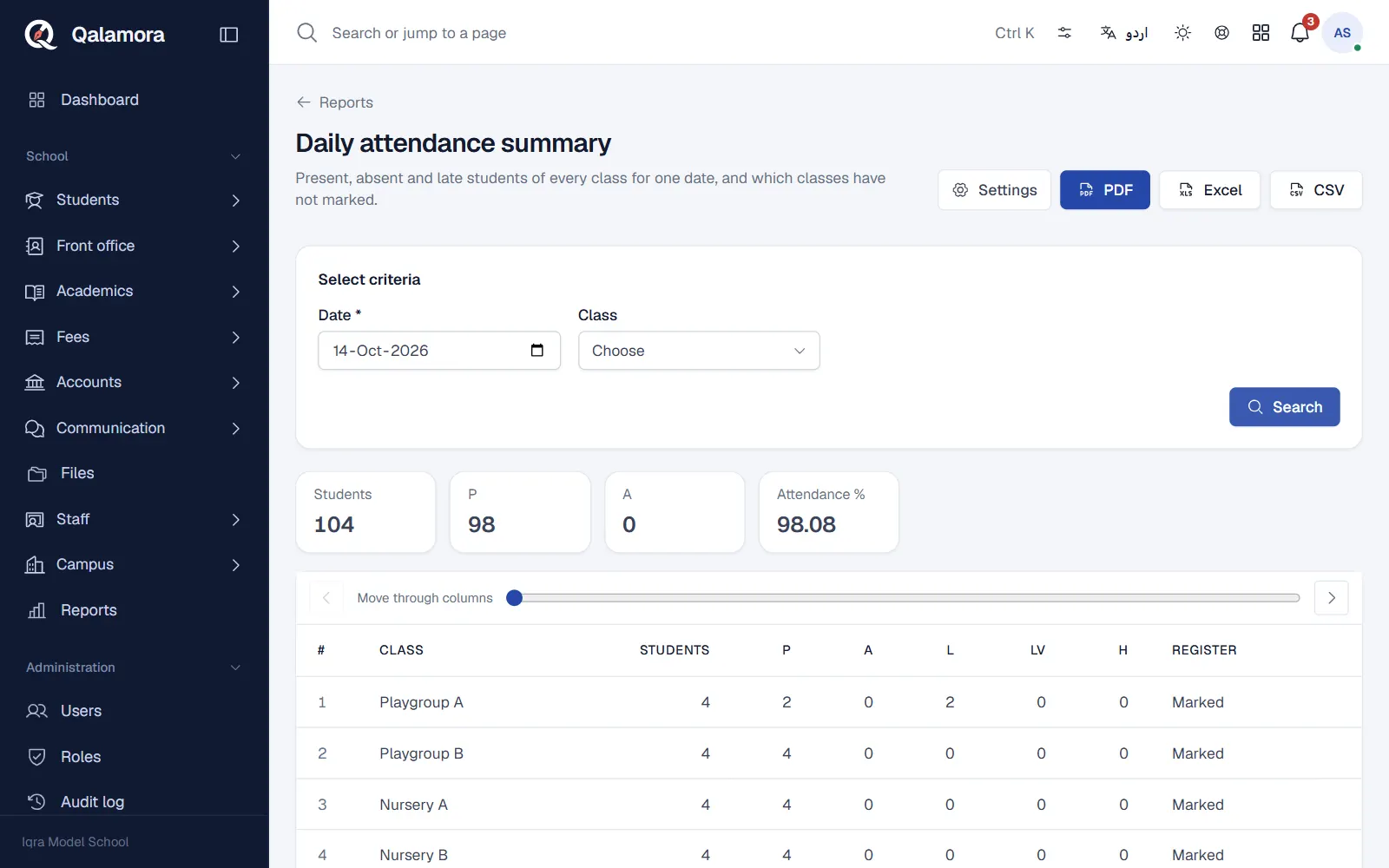
| Daily attendance summary | For one date: each class with its strength, the count of every status (present, absent, late, leave, half day), attendance % and whether the register was marked. |
| Monthly attendance register | The classic register of one class: students down the side, days across, P/A marks, totals and percentage. |
| Low attendance students | Each student's attendance % over a period, lowest first, with an Attendance below filter (50% to 90%, or Everyone). |
| Staff monthly register | Staff attendance for a month with totals and percentage. |
Steps
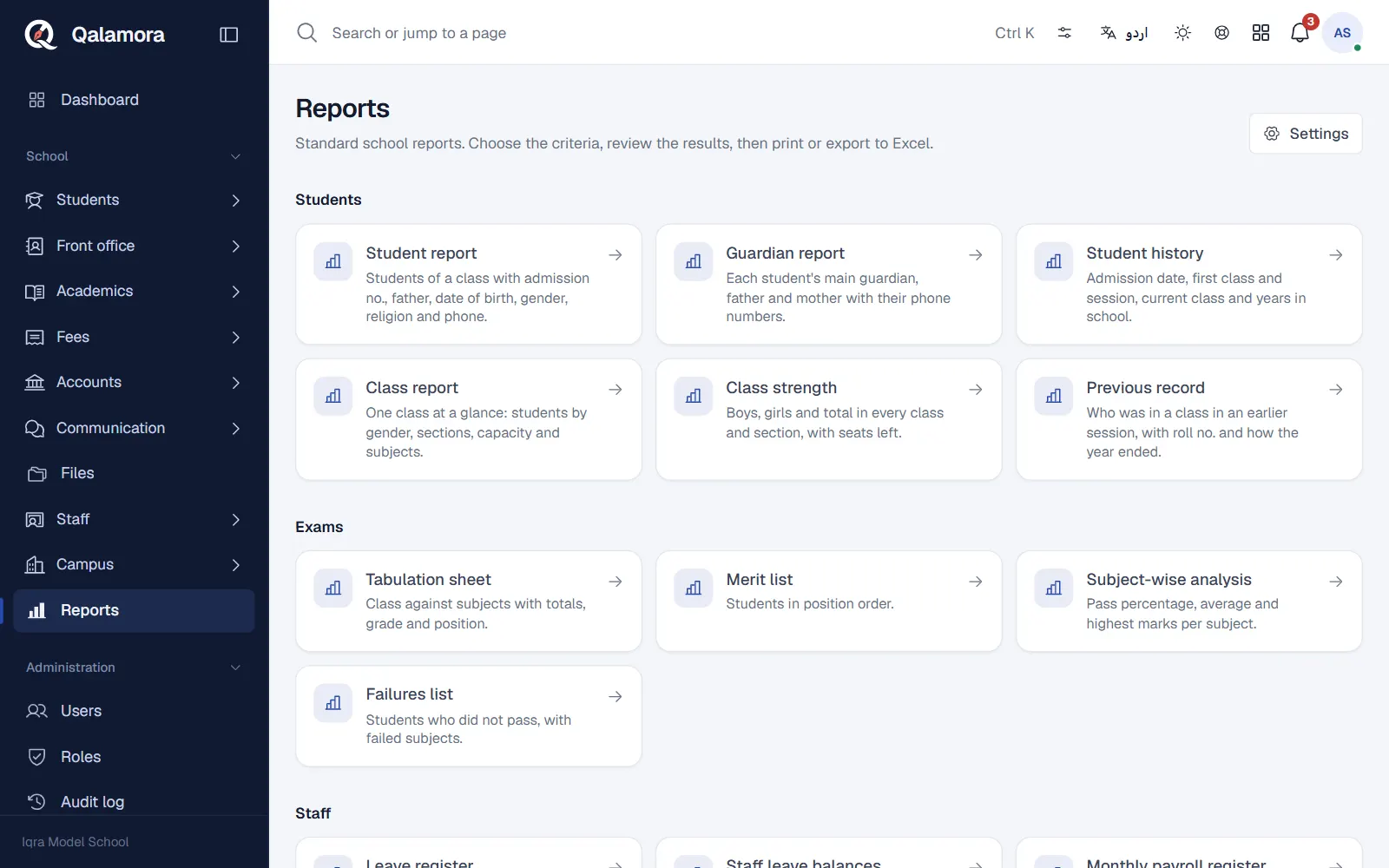
- Open Reports. Click Reports in the menu. The attendance reports are listed with the other school reports.
- Choose a report. For example Daily attendance summary.
- Fill the criteria and search. Under Select criteria pick the date, class, month or period the report asks for, then press Search.
- Print or export. Use the PDF, Excel or CSV buttons at the top of the results. PDFs print in plain black and white with ruled tables.
How the percentage is worked out
Present and Late count as a full day, Half day counts as half a day, Absent and Leave count as zero. The total is divided by the days the register was actually marked, so weekly off days, holidays and unmarked days do not lower a child's percentage.
Tip
To check one child, open the student's profile and use the Attendance tab. It shows a month calendar and the percentage for the month and for the whole session.
Related
Was this page helpful?
Good to hear. Your answer is not sent or saved.
Sorry about that. Tell us what was missing and we will improve this guide. Tell us