On this page
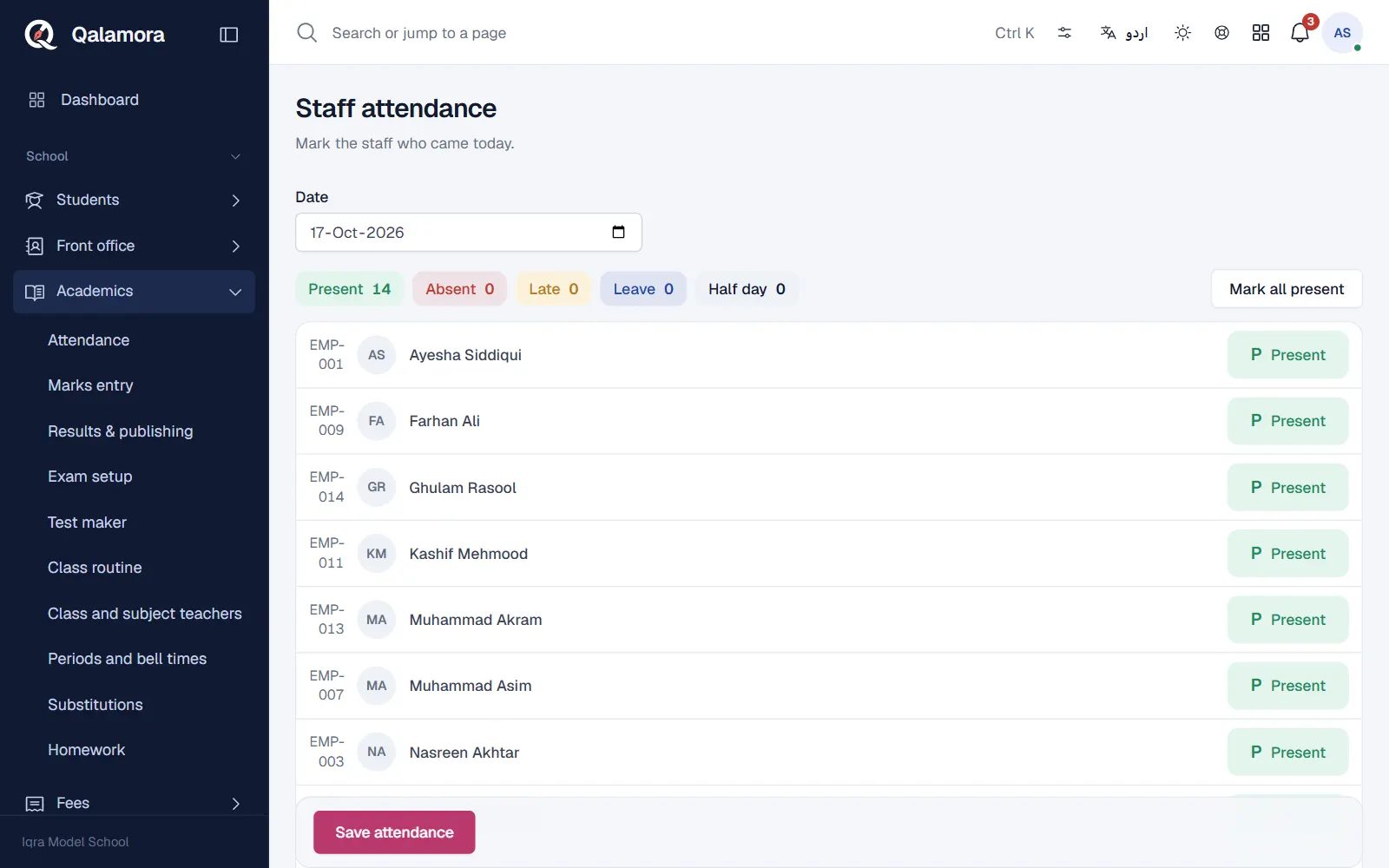
Staff attendance works like the class register: everyone starts as present and you change only the people who are absent, late, on leave or on a half day. It is usually marked by the principal or an office person given the staff attendance permission.
Before you start
- Staff members must be added and active in Staff > All staff.
- Your login needs the Mark staff attendance permission. The Principal role has it by default.
Steps
- Open the staff register. Go to Staff > Staff attendance.
- Check the date. The Date is today. You can pick an earlier date, but not a future one.
- Change the people who are not present. Tap a person's status to move it through Present, Absent, Late, Leave and Half day. Mark all present resets everyone.
- Save. Press Save attendance. You see Staff attendance saved.
Note
Changing an earlier date needs the permission to correct earlier registers, which the principal has by default. Weekly off days and holidays cannot be marked.
Seeing the month
Open Reports and choose Staff monthly register. Pick the month and press Search to see each staff member's days, totals and percentage, then export it as PDF, Excel or CSV. This report also needs the permission to view staff.
Related
Was this page helpful?
Good to hear. Your answer is not sent or saved.
Sorry about that. Tell us what was missing and we will improve this guide. Tell us