The notice board replaces the paper circular. You write a notice once, choose who it is for, and everyone in that group sees it on their board and gets a notification in the bell. Principals and front desk staff normally post notices. Teachers, accountants, parents and students can read the notices meant for them.
Before you start
- The Communication module must be switched on for your school (Settings > Modules).
- You need the permission to manage notices. Principals and the front desk have it by default.
- Parents and students only see notices if they have a login. See parent and student logins.
Steps
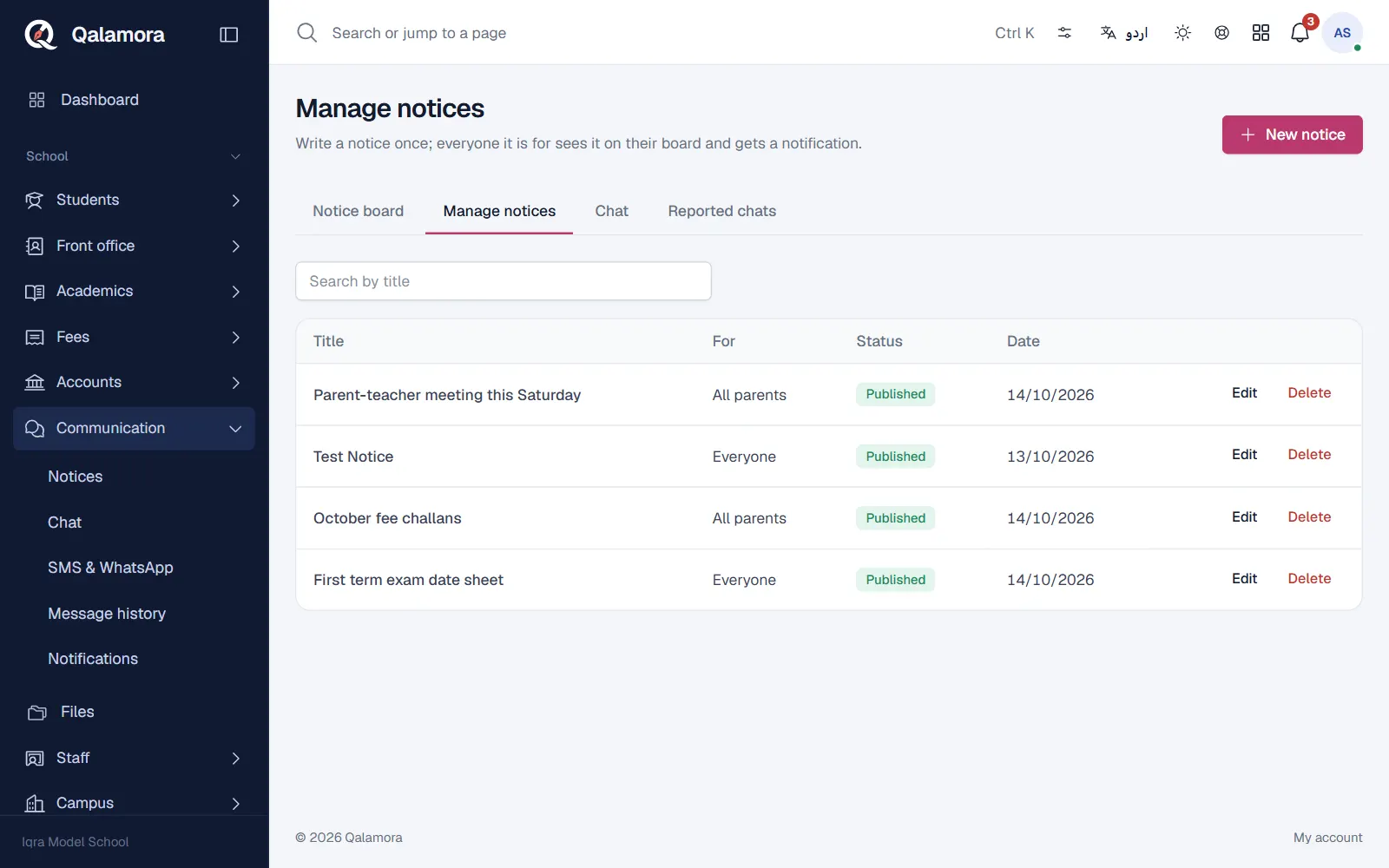
- Open Communication > Notices. You see the Notice board tab, the notices addressed to you. Click the Manage notices tab to see every notice the school has written.
- Click New notice. A form opens on the side of the screen.
- Write the title and the notice text. The text is plain text. Leave an empty line between paragraphs. A notice can be up to 5,000 characters.
- Choose who it is for. Under Who is it for? pick Everyone, All staff, All parents, All students, Classes or sections or Roles. With classes or sections, tick the classes (or single sections) whose parents and students should see it.
- Set the dates if you need them. Publish on schedules the notice for a later date; leave it empty to publish now. Remove from board on takes the notice down automatically after that date.
- Pin it if it is important. Tick Pin to the top of the board so it stays above newer notices.
- Publish or save a draft. Click Publish to send it now (or on the scheduled date), or Save draft to finish it later.
When a notice is published, everyone it is for gets one notification in the bell. Editing a published notice later does not notify people again, and you do not get a notification for your own notice.
Print a notice
Open the notice from the Notice board and click Print. Qalamora prepares a black and white A4 page with your letterhead, notice number, date, title, the text and a signature line, in English or Urdu (the language you are using). The PDF opens in a new tab when it is ready.
Statuses
| Status | Meaning |
|---|---|
| Draft | Saved, not visible to anyone else yet |
| Scheduled | Will appear on the Publish on date |
| Published | Visible on the boards of the people it is for |
| Expired | Past its Remove from board on date, no longer on the board |
Scheduled notices are published, and expired ones taken down, automatically within a few minutes of their time.
نوٹ
Deleting a notice removes it from every board and cannot be undone. If a notice is only out of date, set a Remove from board on date instead.
What parents and students see
Parents see notices for everyone, for all parents, and for the classes of their own children. Students see notices for everyone, all students and their own class. The latest three notices also appear on the parent and student home page.
Related
کیا یہ صفحہ مفید تھا؟
سن کر خوشی ہوئی۔ آپ کا جواب کہیں بھیجا یا محفوظ نہیں کیا جاتا۔
معذرت۔ ہمیں بتائیں کیا کمی تھی، ہم یہ رہنمائی بہتر کریں گے۔ ہمیں بتائیں