Exams are set up once per term: you add the term, create an exam for each class, then give each exam its subjects, marks and date sheet. Setup needs the Exam setup permission, which the principal has by default.
Before you start
- Classes, sections and subjects exist in Settings > Academic setup, with the subjects each class teaches ticked under Subjects taught.
- A current session is set. New terms are added to the current session.
Steps
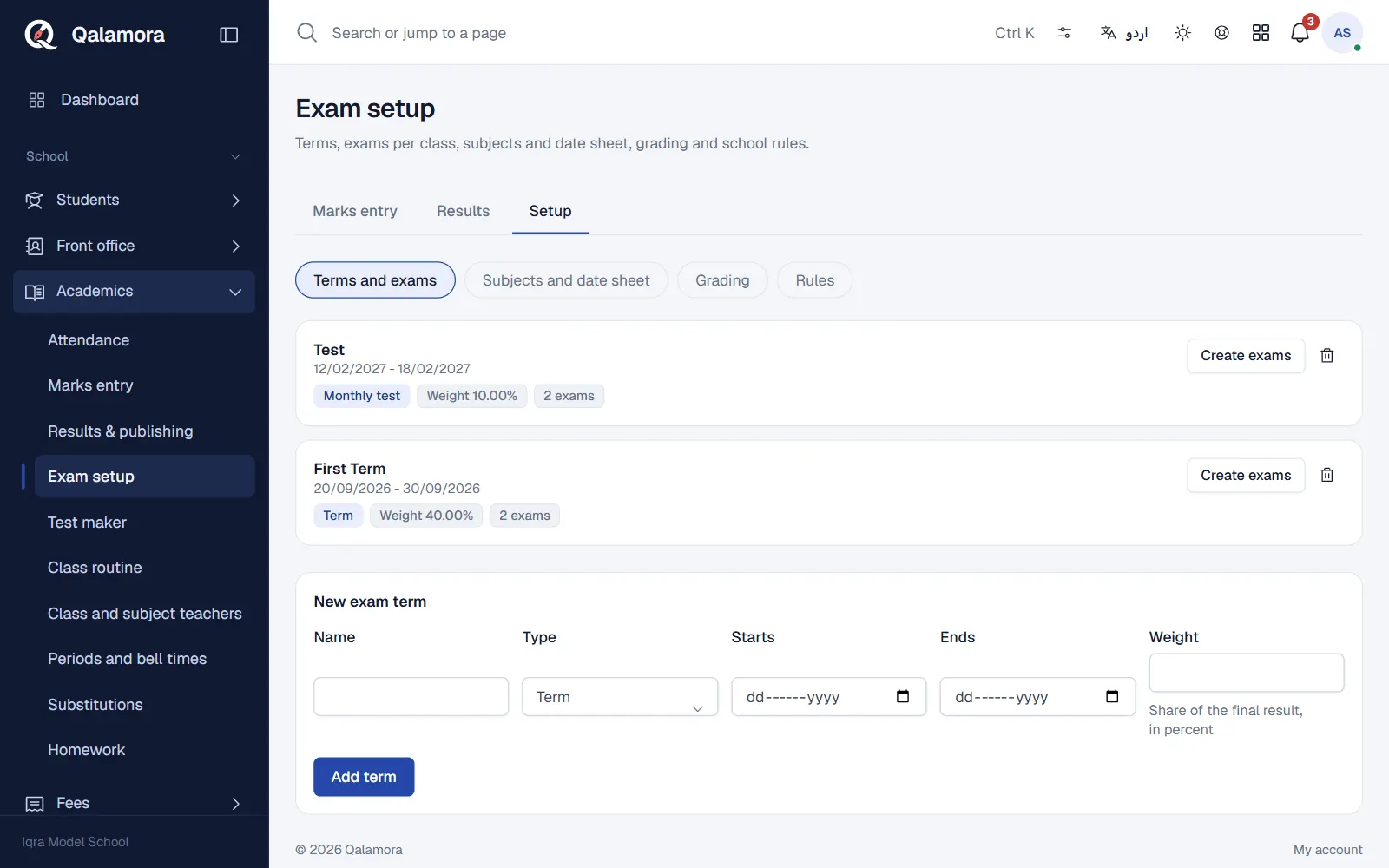
- Open Exam setup. Go to Academics > Exam setup. The page has four parts: Terms and exams, Subjects and date sheet, Grading and Rules.
- Add a term. Under New exam term type the Name (for example First Term), choose the Type (Monthly test, Term or Final term), the Starts and Ends dates and the Weight, then press Add term.
- Create the exams. On the term, press Create exams, tick the Classes that sit this term and, if you want, pick an earlier exam in Copy subjects from. Press Create exams again. One exam is made for each class.
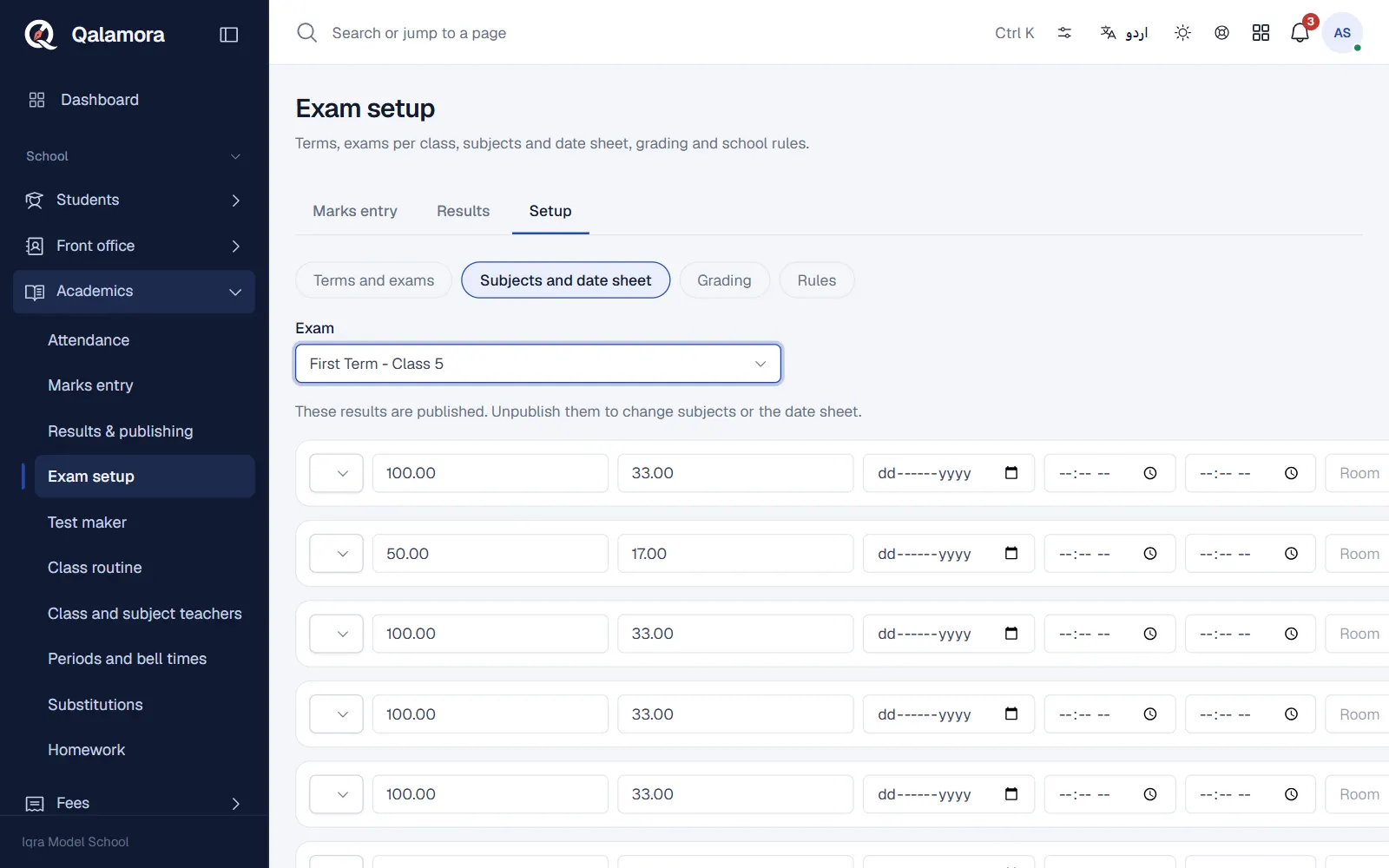
- Set subjects and the date sheet. Open Subjects and date sheet and choose the Exam. Press Add the class subjects to bring in the class's subjects, or Add subject for one at a time. For each subject fill Max marks, Passing marks, the date, start and end time and the room. Press Save subjects and date sheet.
- Check grading. Open Grading. If there is no scale, press Add a common scale and edit it, or press New scale to make your own. The scale marked Default is used for results.
- Set the rules. Open Rules to set the Pass percentage, whether Failing any subject fails the exam, and the other school choices below.
مشورہ
When you type the maximum marks, the passing marks are filled in from your pass percentage. Change them if a subject has a different passing mark.
Weight and the final result
The Weight is the share of a term in the final yearly result, in percent. A term with weight 0 does not count. The final result card combines all weighted terms once every one of them is published.
Grading scale
A percentage gets the band with the highest From % it reaches. The lowest band must start at 0. The common scale is A1 (80% and above), A, B, C, D, E (33% to 39%) and F, which you can edit.
Rules
- Pass percentage: the default for every exam (33% if you never change it).
- Failing any subject fails the exam: turn off if only the overall percentage decides.
- Show positions to parents and students: off by default.
- Tell students and parents when results are published: an in-app notice with a link to Results.
- Result SMS text: the message used when you choose to send SMS on publishing.
- Teachers may enter marks only for subjects they teach: uses the teacher lists in Academics.
نوٹ
Once an exam's results are published, its subjects and date sheet are locked. Unpublish the results to change them.
Related
کیا یہ صفحہ مفید تھا؟
سن کر خوشی ہوئی۔ آپ کا جواب کہیں بھیجا یا محفوظ نہیں کیا جاتا۔
معذرت۔ ہمیں بتائیں کیا کمی تھی، ہم یہ رہنمائی بہتر کریں گے۔ ہمیں بتائیں