اس صفحے پر
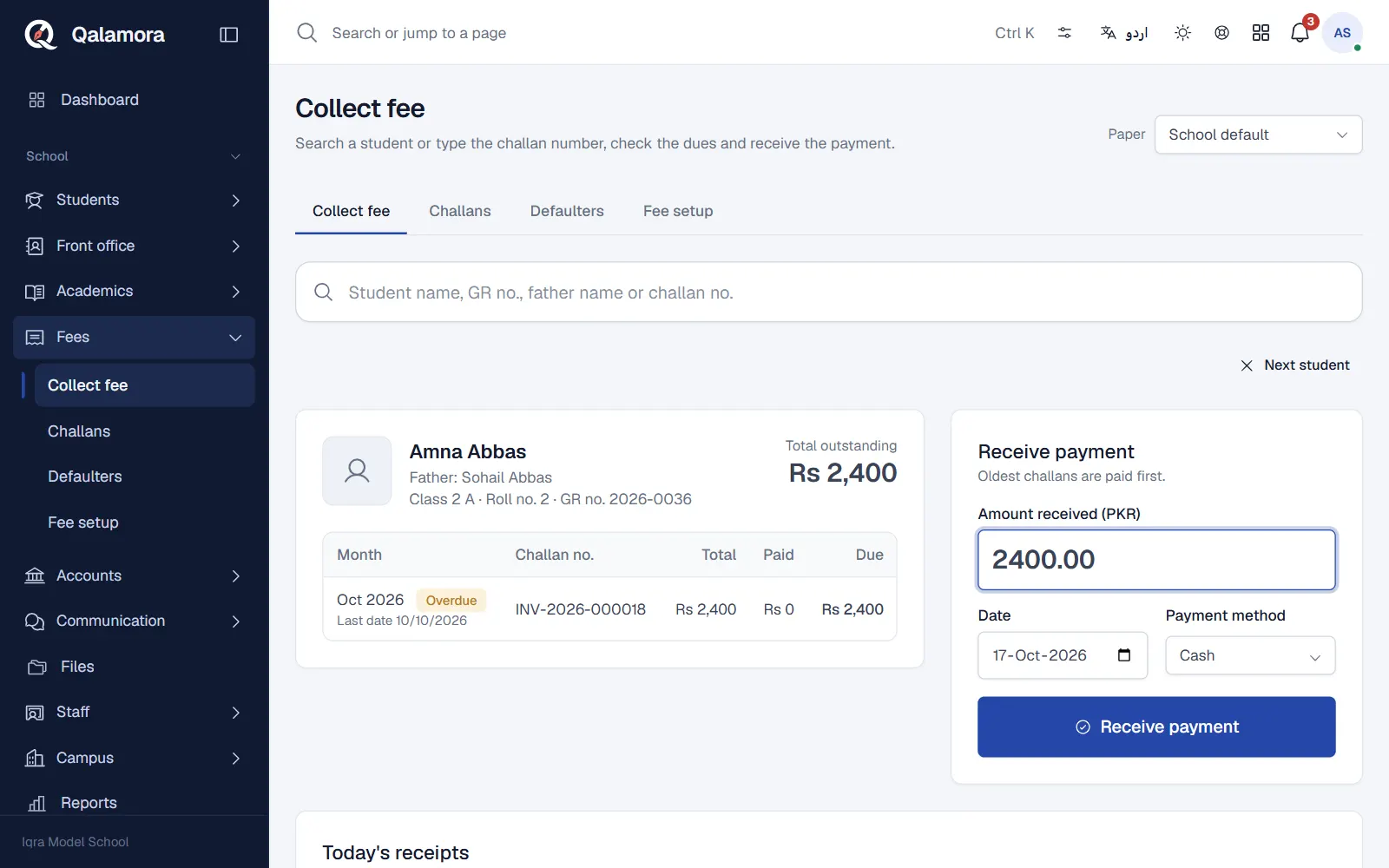
The fee counter is the first tab of Fees. It is built for a busy morning: search, check, receive, next student. The accountant or principal normally collects fees.
Steps
- Open Fees. The Collect fee tab opens.
- Find the student. In Find student type the student's name, GR number, father's name or the challan number, and pick the student.
- Check the dues. The card shows the father's name, roll and GR number, Total outstanding and every unpaid challan with its month, total, paid, due and last date. Overdue challans are marked. If the family paid ahead, Advance credit is shown.
- Enter the payment. Type the Amount received, check the Date and choose the Payment method: Cash, Bank deposit, Cheque or Online / mobile wallet. For anything other than cash, enter the Reference / transaction no.
- Add the late fine if needed. If a challan is overdue and your school charges a late fine, tick Add late fine for overdue challans.
- Click Receive payment. The receipt opens straight away for printing. Click Next student to clear the screen.
How the money is applied
- The oldest challans are paid first.
- Part payment is accepted only if Allow part payment is on in Rules and printing. Otherwise whole challans must be paid.
- Money above what is due is kept as advance credit only if Allow advance payment is on.
- If Tell parents when a payment is received is on, the parent sees a notice with the receipt number and amount in their app.
- When the Accounts module is on, each payment is posted to the day book automatically, so nobody types it twice.
مشورہ
Choose the receipt paper with the Paper menu at the top of the counter. Pick Receipt printer 80 mm if you use a thermal printer.
Related
کیا یہ صفحہ مفید تھا؟
سن کر خوشی ہوئی۔ آپ کا جواب کہیں بھیجا یا محفوظ نہیں کیا جاتا۔
معذرت۔ ہمیں بتائیں کیا کمی تھی، ہم یہ رہنمائی بہتر کریں گے۔ ہمیں بتائیں