Your school profile is printed on every challan, receipt, admission form, ID card and certificate. Fill it in once, before you print anything. The school owner does this, or a staff role the owner has given settings access.
Before you start
- A logo image, square and at least 300 x 300 pixels. A PNG with a transparent background prints best.
- The principal's signature: sign on white paper, photograph it and crop it tightly.
- A photo of the school stamp, if you use one on certificates.
Steps
- Open the school profile. Go to Settings > School and branding.
- Fill in Identity. Enter the School name, the School name in Urdu, a Short name, the Registration or affiliation no. and the Motto. If you leave the school name empty, the account name from signup is used.
- Fill in Address and contact. Enter the Address, City, Phone, Email and Website. These print under the school name on every document.
- Upload the logo and signatures. Under Logo and signatures, upload the School logo, type the Principal's name, then upload the Principal's signature and the School stamp. You can also upload a Small mark, which appears as the browser tab icon. Images are resized and cleaned when uploaded.
- Add more details if you want. Under More about the school you can add the Urdu motto, affiliation, a second address line and phone, WhatsApp number, social pages and a Sign-in page message in English and Urdu.
- Save. Click Save at the bottom of the page.
Choose the letterhead
- Open Settings > Forms and printouts.
- Under Letterhead and paper, choose the Logo position (left or centered), the Label language (English and Urdu, one language only, or Urdu first) and the Paper size (A4, Letter or Legal).
- If your school is affiliated with a board, choose it in Affiliation and type the details, for example "Lahore, Affiliation No. 1234".
- Click Save, then Download sample admission form to check how it looks on paper.
The same page sets which sections appear on the admission form, the office signature title and an optional footer note.
Tip
Print the sample on your own printer before printing a month of challans. Most office printers print monochrome, so check that the logo is still clear in black and white.
Workspace colours
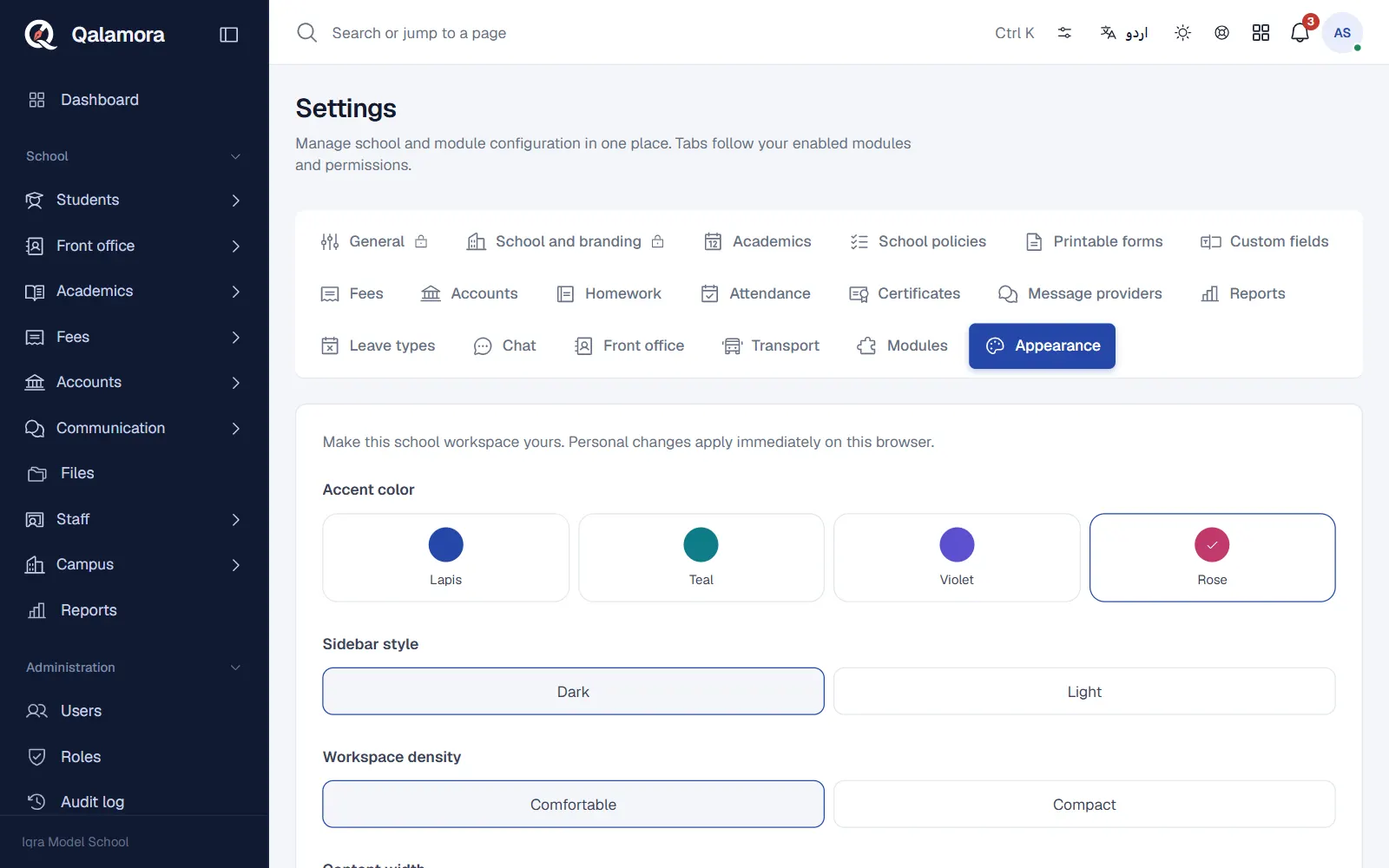
Settings > Appearance changes how the screens look, not the printouts. Anyone can pick an accent colour, a dark or light sidebar, comfortable or compact spacing and the dashboard sections for their own browser. The owner can click Save school defaults so new users start with the same look.
Related
Was this page helpful?
Good to hear. Your answer is not sent or saved.
Sorry about that. Tell us what was missing and we will improve this guide. Tell us