On this page
Leave replaces the paper leave register. Staff apply from their own login (or the office enters it for them), the principal approves or rejects, and the balance of each leave type updates on its own. Approved leave without pay is deducted in payroll.
Before you start
- The principal sets up leave types in Settings > Leave types. Click Add common defaults for casual (10 days), sick (8), earned (20, carried forward up to 40), maternity (90 calendar days) and leave without pay (no limit), then change the days to your school's policy.
- A staff member needs a login linked to their staff record to apply themselves. See staff records.
Steps
- Open Staff > Leave. The My leave tab shows your applications and the Days left for each leave type this year.
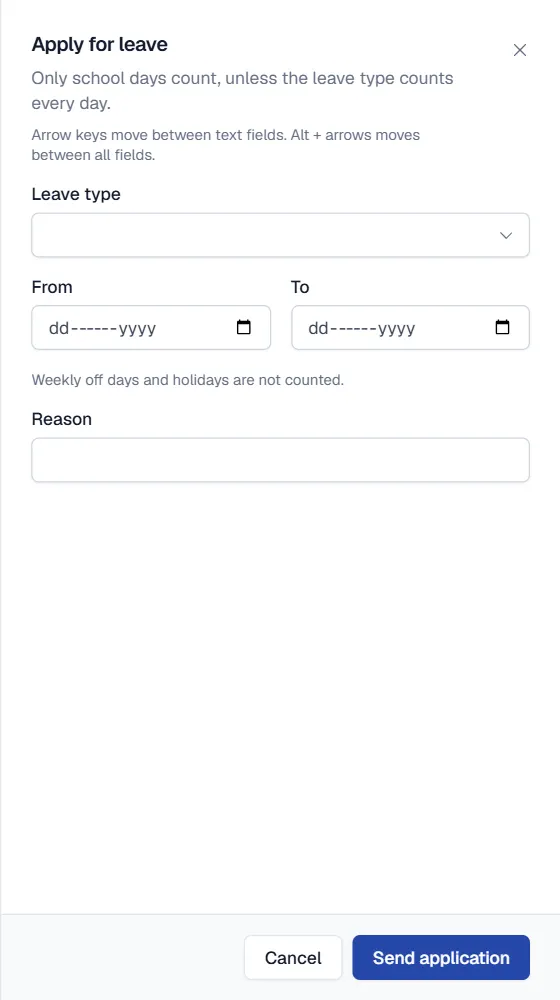
- Click Apply for leave. Choose the Leave type and the From and To dates. For types that allow it, tick Half day for a single date. Write the reason.
- Send the application. Click Send application. The people who approve leave get a notification in the bell.
- Approve or reject. The principal opens the Waiting for approval tab and clicks Approve or Reject. A rejection needs a reason, which the staff member sees.
- The staff member is told. They get a notification with the decision, and the balance updates.
How days are counted
Only school days count: weekly off days and holidays from the school calendar are skipped. Leave types marked Count every day (maternity) count every calendar day. A half day counts as 0.5. The leave year runs from January to December, and one application cannot cross into the next year.
Qalamora refuses an application that is more than the days left after approved and waiting leave. Leave without pay has no limit.
Entering leave for someone else
Office staff with the leave management permission can choose a Staff member in the apply form instead of Myself, for example for a teacher who phoned in sick.
Who sees what
- Nobody approves their own leave.
- The Leave this month tab shows who is on leave in a month (principal and owner).
- Staff can cancel their own application while it is waiting. Approved leave can only be cancelled by an approver.
Per designation and carry forward
In a leave type you can set Days per designation (for example Teacher 12) and Unused days carry forward with a cap. Carried forward days come from the previous year only.
Note
If a payroll was already posted for a month, cancelling leave in that month does not change it. Reverse and post the payroll again to correct it.
Related
Was this page helpful?
Good to hear. Your answer is not sent or saved.
Sorry about that. Tell us what was missing and we will improve this guide. Tell us