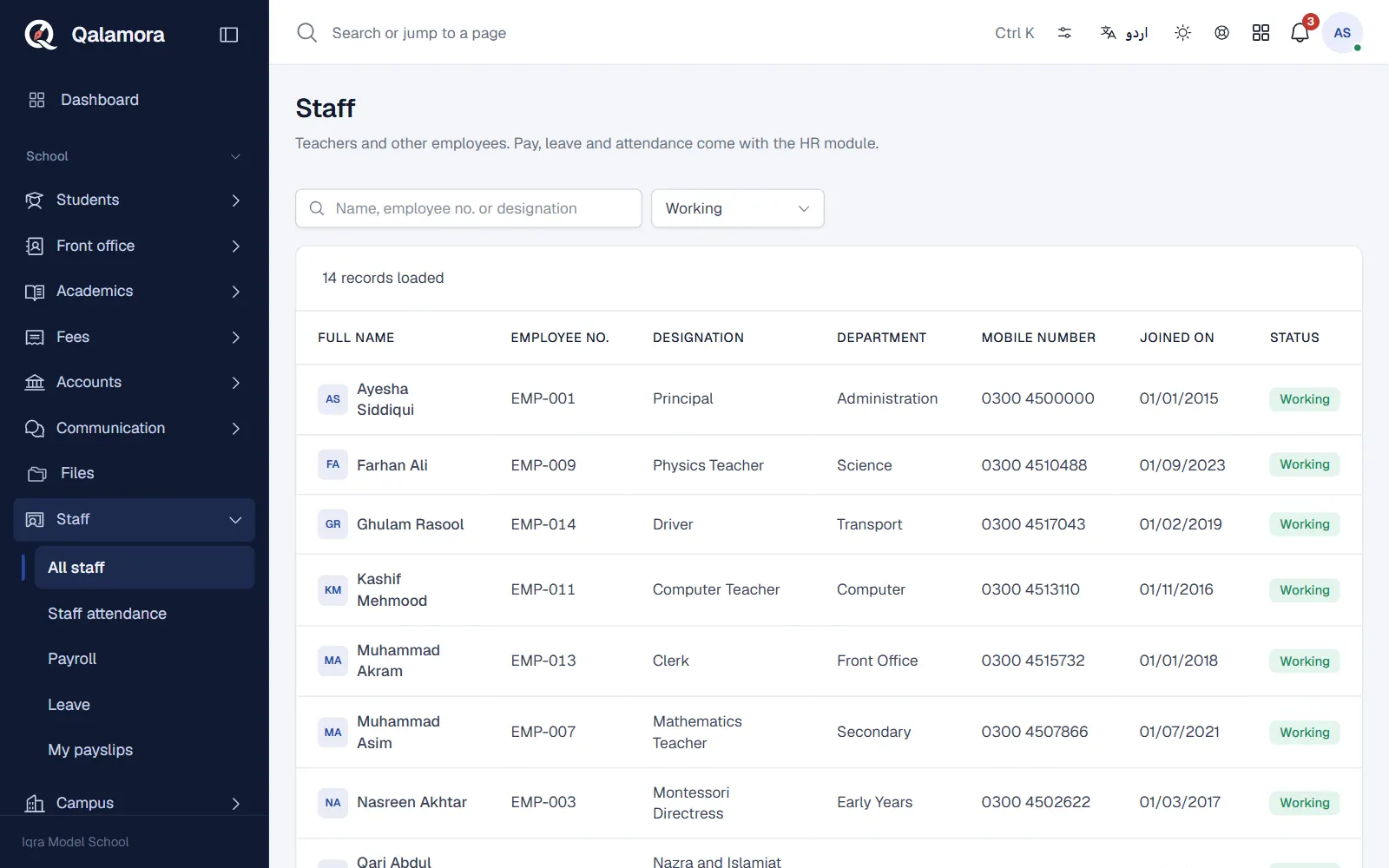
Every teacher, clerk, driver and guard has one staff record. Payroll, leave, staff attendance and the library all use that same record, so you type a person's details only once. The school owner adds and edits staff records by default; principals and accountants can view the list. The owner can give other roles this permission in Roles.
Steps
- Open Staff > All staff. The list shows working staff with their employee number, designation and department.
- Click Add staff member. A form opens on the side.
- Fill in the details. Full name is the main field. Add the Employee no., Father's or husband's name, gender, blood group, photo, Designation (for example Science teacher, Clerk, Driver), Department, phone, email, CNIC and Joined on date as you have them. If your school has more than one campus, choose the campus or All campuses.
- Save. Click Add staff member at the bottom of the form.
- Give them a login if they need one. In the list, click Create login on the person's row, choose their Roles (for example teacher or accountant) and confirm. The login uses the email or mobile number from the staff record unless you change it. Rows that already have one show Has login.
مشورہ
Create the login from the staff row, not as a separate user. This links the login to the staff record, so the person can apply for leave and see their own payslips.
When someone leaves
Open the person with the pencil button and change Status from Working to Left. Their record and history stay. Use the status filter above the list to see staff who have left.
Edit many records at once
- Tick the people you want to change and click Edit selected to set one field for all of them, or change values row by row. You review the changes before they are saved.
- For bigger changes, tick the rows, click Export edit file, change the values in Excel, then use Import updates to load the file. Keep the id and revision columns as they are. You see every change before it is saved.
Your school can add its own fields (for example qualification or bank branch) in Settings > Custom fields. Download blank form prints an empty staff joining form for new employees to fill in by hand.
Related
کیا یہ صفحہ مفید تھا؟
سن کر خوشی ہوئی۔ آپ کا جواب کہیں بھیجا یا محفوظ نہیں کیا جاتا۔
معذرت۔ ہمیں بتائیں کیا کمی تھی، ہم یہ رہنمائی بہتر کریں گے۔ ہمیں بتائیں