Students come back, and students change sections. Both are done from the student's profile and both keep the full history.
Re-admit a student who left
- Open the student's profile. Search the student list with the status filter set to Left.
- Click Re-admit.
- Enter the Date of re-admission and choose the class and section in the current session.
- Click Re-admit. The student is studying again with the same GR number. The history shows the re-admission.
Remember to put the student back on a fee plan with Apply to class in Fees > Fee setup.
Move a student to another section or campus
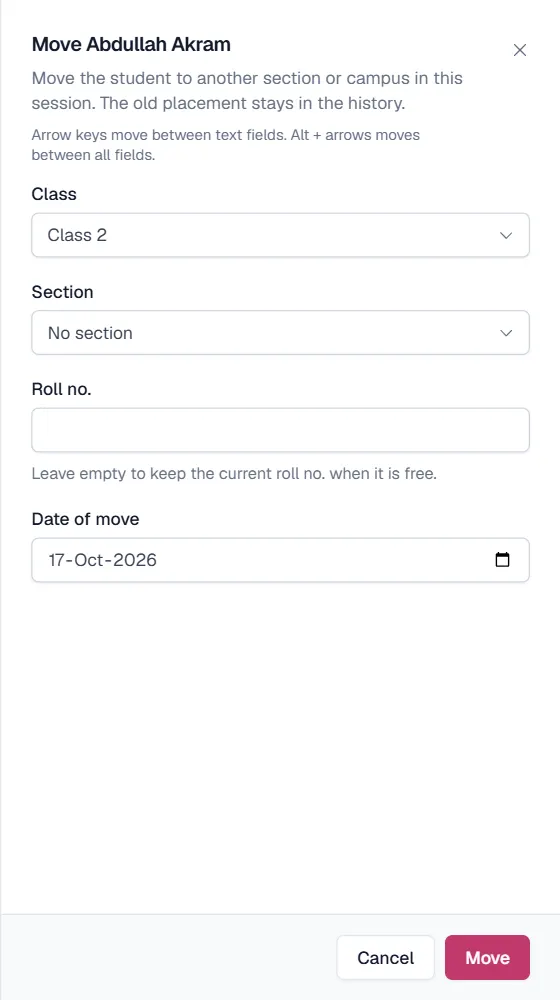
- Open the student's profile and click Move section.
- Choose the new section (or campus) in this session and the Date of move.
- Roll number. Leave it empty to keep the current roll number when it is free in the new section.
- Click Move. The old placement stays in the history, so attendance and marks before the move still belong to the old section.
Note
To move a whole class into the next year, use Promote students instead.
Related
Was this page helpful?
Good to hear. Your answer is not sent or saved.
Sorry about that. Tell us what was missing and we will improve this guide. Tell us