A paper starts from a template (the sections and marks), a class and a subject. Qalamora picks approved questions from the bank, avoiding ones the class had recently, and you then edit the paper with a live print preview beside it. Teachers can make and print papers by default.
Before you start
- The bank has approved questions for the class and subject. See Build your question bank.
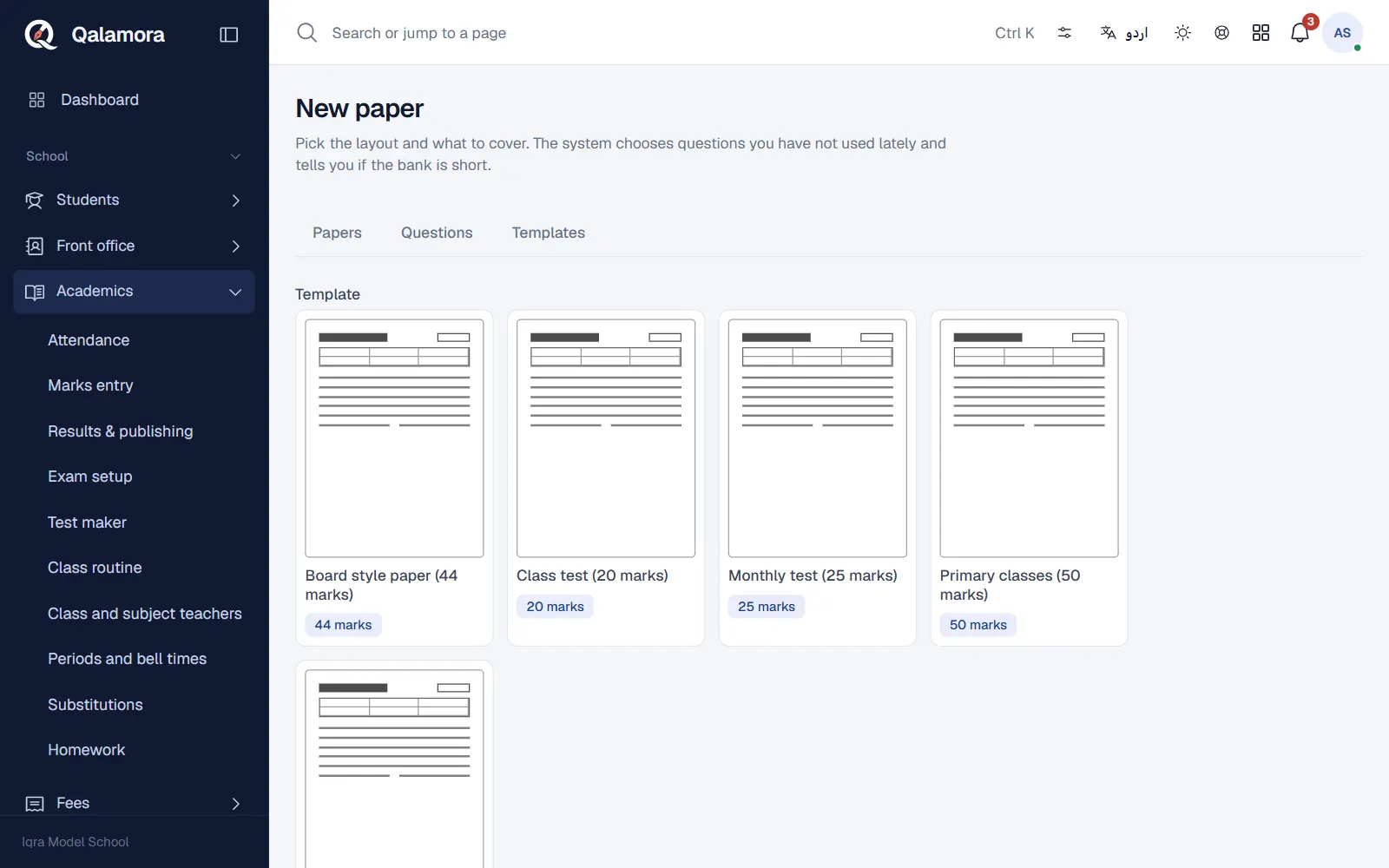
- At least one paper template exists. In the Templates tab, Add common templates adds Board style 44, Terminal 75, Monthly 25, Class test 20 and Primary 50, which you can edit. Managing templates needs the template permission (principal by default).
Steps
- Start a new paper. Go to Academics > Test maker and press New paper.
- Pick the template and details. Choose the Template (it shows the total marks and minutes), type the Paper name, choose the Class, Subject, Language and the Exam date.
- Choose what to cover. Tick the Chapters to cover, or leave all unticked for every chapter. Set the Difficulty mix (percent) for easy, medium and hard so it adds up to 100.
- Set reuse and versions. Avoid questions from the last papers skips questions this class had in its last few final papers. Versions of the paper makes up to four versions (A to D) with shuffled questions and options.
- Make the paper. Press Make the paper. The editor opens with the paper on the left and a page-by-page print preview on the right.
- Edit and print. Change any question, then press Print, choose Question paper, Answer key or MCQ answer sheet (bubbles), the version and language, and press Make PDF.
Tip
If the bank is short, the editor shows The bank did not have enough approved questions with what is missing in each section. Add your own questions there or approve more in the bank.
Editing the paper
- Type straight into any question. Bold, italic and underline work with Ctrl+B, Ctrl+I and Ctrl+U.
- Move a question with drag, Move up or Move down; Swap with a similar question brings in another approved question of the same type.
- Add your own question or Add from the bank in any section. Edits change only this paper, never the bank.
- Changes save by themselves. Save (or Ctrl+S) keeps a version you can bring back from Versions.
- Mark final locks the paper and records its questions as used by the class. Reopen unlocks it.
Paper styles
Open Paper style, watermark and bubble sheet in the editor to choose the look:
| Style | Looks like |
|---|---|
| Board style (BISE pattern) | Objective part on its own page, then Section I and II. |
| College test | Compact header box, marks at the right. |
| Academy test | Dense, two columns, chapter band. |
| Simple worksheet | Big type, answer lines, name box. |
| International (IGCSE-like) style | Candidate box, marks in brackets. |
The same panel sets paper size (A4, Legal, Letter, A5), text size, margins, one or two columns, line spacing, answer lines, page numbers, footer text, campus and test type. Paper details and header sets the heading (also in Urdu), time, and what the header shows, such as the roll number box and student name line. Save as my template keeps these settings for next time.
Related
Was this page helpful?
Good to hear. Your answer is not sent or saved.
Sorry about that. Tell us what was missing and we will improve this guide. Tell us